Gmail analytics: A comprehensive guide for all users
Word Count: 4730 words | Est. Reading Time: 32 mins
⚡Quick Summary
Gmail analytics help you track emails, reply times, and team performance in one place
By using Gmail analytics, you can spot slow response times, balance team workload, better, and improve customer communication
You can use data from Gmail analytics to show leadership exactly how fast and efficient your team is
When looking for Gmail analytics software, focus on response time tracking, real-time email alerts, customizable dashboards, and seamless integration
Use Gmail analytics to track average email response time, first reply time, first contact resolution, CTR, and escalation rate
Gmail analytics let you track email activity, response times, and team performance within your Gmail account. They help your business measure productivity, improve reply speed, and manage email workflows, enabling you to serve customers better.
You and your team use your inbox every single day to:
Support your existing customers with their questions
Answer questions from warm sales leads and move them through the sales pipeline
Send key assets and information to team members
Despite the importance of your email inbox, most businesses’ Gmail accounts are a blind spot.
In this guide, we’re going to show you how to use Gmail analytics to transform your Gmail account activity into key insights that you can use to improve how your team uses their email inboxes.
Ever wondered how many emails you fire off each week, or why some chats drag on?
Gmail analytics can help you gain valuable insights into your team’s email activity and performance. While Gmail provides some basic metrics, you need a specialized analytics solution to gain deeper insights and track email response times.
Gmail email analytics software solutions give you insights into how you and your team use your Gmail (Google Workspace) account. For example:
These metrics aren’t available in Gmail out of the box, so a Gmail analytics tool is essential if you want to level up how your team uses email to support existing customers and engage with new ones.
⚡What is Gmail analytics?
Gmail analytics is the practice of measuring how you and your team use a Gmail or Google Workspace account, such as how many emails you send and how quickly you reply. Gmail shows only basic figures, so a dedicated analytics tool is needed for deeper insight into response times and SLA performance. It turns everyday email activity into clear, actionable data.
If you use Gmail for business emails, you can’t really do without Gmail analytics. It tells you everything you need to know about your team’s email productivity.
From how quickly your team replies to emails to how many leads they are able to generate via emails, Gmail analytics tells you everything.
Here are some reasons why you should invest in Gmail analytics tools to get the right insights that can help improve team productivity.
Identify slow response times
Ever get stuck wondering who’s taking forever to respond or why your average response time is so slow?
Gmail analytics shows you exactly where reply times drag. You can then tweak schedules or nudge teammates before small delays turn into missed opportunities.
Catch trends before they bite
Maybe Mondays are always a flood of customer questions, or late afternoons see a lull. Spotting those rhythms lets you plan focus hours, set “reply blocks,” and avoid inbox surprises that derail your day.
Share the load better
Some team members end up buried in messages while others don’t get nearly as much. Gmail stats help you catch that early. You’ll know who’s swamped and who can take on more, without anyone needing to raise a hand.
Keep people from waiting too long
When a lead or customer emails, they want to hear back soon — even if it’s just “we’re on it.” First reply time tells you how long folks wait before someone responds. The faster you answer, the better the customer experience on their end.
It’s one thing to say your team’s doing well — it’s another to prove it. With Gmail analytics, you get hard numbers on response times and email volume.
That way, if someone asks how your team’s performing, you’ve got real data to show, not just a guess.
⚡Why do you need Gmail analytics?
Catch and fix response time issues early
Give customers quick, helpful email responses
Spot busy periods and plan your reply times better
Balance the workload to improve team efficiency and productivity
Show clear proof of your team’s performance
What are the key features you should look for in Gmail analytics software?
By now, you’re hopefully clear on what Gmail analytics is and why you need it. But how do you perform email analytics for your business?
Well, that’s where Gmail analytics tools come into the picture. There are different types of email analytics tools that provide a range of metrics.
With so many available options, choosing the right tool can be difficult. Look for the following features when comparing Gmail analytics software solutions to make the right choice.
1. Ability to measure email response times
The first feature to look for is that it measures your team’s email reply times.
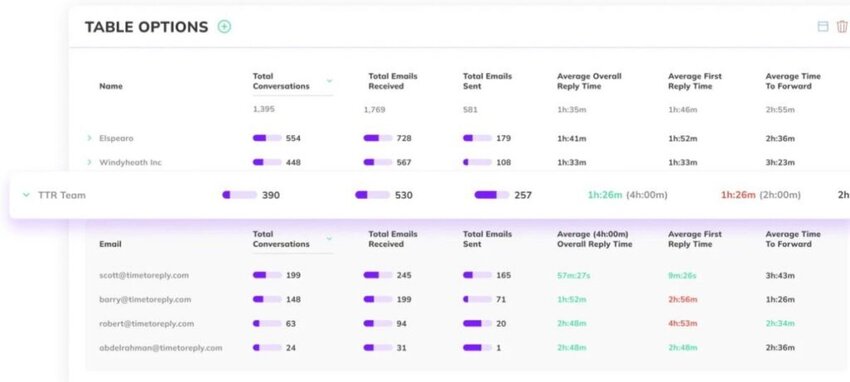
Once you start using a Gmail analytics tool like timetoreply, it’ll track your inbound and outbound emails and show you metrics like the average length of time it takes for your team to respond to customers and inbound emails.
You can break down your reply time metrics by criteria such as:
Overall average time to reply
Average time to first reply
Individual inbox vs. group mailbox reply times
As you gather data, you will be able to see if your team is responding to customers within your target times. You’ll also learn whether certain team members tend to reply faster than others.
Using the reply time data, you can set new goals and KPIs for your team to ensure you never leave a customer or sales lead waiting too long for a reply.
⚡Why does measuring email response times matter?
Measuring email response times shows how long your team takes to reply, both on average and to first contact, and lets you break it down by person or mailbox. This reveals whether you are meeting your target times and who replies fastest. It gives you the data to set realistic reply-time goals and keep customers from waiting.
2. Real-time email alerts
To help you hit your reply time goals, look for Gmail analytics tools with real-time alerts. These alerts will notify you when new emails come in from customers, leads, or team members. When you see the alert, you can jump into your Gmail inbox and reply.
Why is this an important feature?
You can use it to ensure the most important emails never get missed or left behind. For example, if you’re working on closing a new contract, you can enable real-time alerts to show in your browser whenever new emails come in from that particular sales lead.
When you get your alert, you can go to your Gmail inbox and ensure your lead isn’t kept waiting.
It’s a feature that will help make your Gmail analytics more actionable — rather than simply monitoring your team’s email activity, it can help you improve it.
⚡Why are real-time email alerts useful?
Real-time alerts notify you the moment an important email arrives from a customer, lead, or teammate, so nothing slips through unnoticed. You can jump straight into your inbox and reply while the message is fresh. This turns analytics from passive monitoring into action that actively improves response times.
3. Agent and team performance insights
To understand your Gmail activity metrics in context, you need to be able to compare your team’s email activity levels over time.
By having historical email activity data available, you are able to track the key metrics in your business over time to see how they compare.
Over time, you can adjust your email reply time goals and best practices to ensure they’re positively affecting your business, rather than just being extra metrics your team needs to look at without full context.
⚡Why do team performance insights matter?
Performance insights let you compare your team’s email activity over time instead of judging it in isolation. With historical data, you can see whether reply times and volumes are trending in the right direction. That context helps you adjust goals and best practices so they genuinely improve results.
4. Customizable dashboards
You don’t always need every metric staring back at you. A tool that lets you customize your Gmail analytics dashboards lets you get exactly the charts you care about — whether that’s “emails handled per agent” or “peak inbox hours.”
This also helps you get the insights you want quickly. You don’t need to sort through tons of irrelevant data to find the one thing you need. You can decide which metrics matter the most and keep them front and center.
If you’re looking for a Gmail analytics tool that offers custom dashboards, timetoreply is an excellent choice.
Customizable dashboards let you display only the metrics you care about, such as emails handled per agent or peak inbox hours. That way you find the insight you need quickly instead of sifting through data that isn’t relevant. You decide what stays front and center.
5. Automatic email digests
You don’t need another screen to check. Set up a handful of summary reports — maybe a quick Monday morning look at last week’s replies, or a Friday wrap‑up on slowest threads — and let them show up in your inbox automatically.
No clicking in and hunting down stats. It feels like someone’s giving you a weekly briefing, without the hassle of logging into a dashboard.
⚡What are automatic email digests?
Automatic email digests are scheduled summary reports that land in your inbox without you having to log in to a dashboard. You might get a Monday recap of last week’s replies or a Friday wrap-up of the slowest threads. They keep you informed like a regular briefing, with no manual digging.
6. Integration with your tech stack
Switching apps is distracting and kills momentum. If your Gmail analytics platform syncs with Slack, your CRM, or Zapier, you save that back-and-forth.
Imagine waiting 30 minutes for a sluggish reply? When your tool spots that, it can drop a message in Slack or add a note in Salesforce. That keeps conversations in motion, rather than buried in another dashboard you might not open every now and then.
⚡Why should Gmail Analytics integrate with your tech stack?
Integration lets your Gmail analytics tool sync with apps like Slack, your CRM, or Zapier, so you don’t lose momentum switching between them. When the tool detects a slow reply, it can automatically post to Slack or add a note in your CRM. That keeps conversations moving rather than burying them in a separate dashboard.
Which are the key metrics you should track using Gmail analytics tools?
Now that you have some great Gmail analytics tools at your disposal, you should learn how to use them effectively. If you’re using Gmail analytics for your client-facing teams, here are some key metrics you should track.
1. Average email response time
This one’s pretty basic — it tells you how long, on average, you take to reply to emails. It’s not just about the first response, but every reply across the board.
Simply add your reply times and divide the sum by your total emails, and you’ll get your average email response time.
Say you reply to one email in 30 minutes, another in 2 hours, and a third in 1 hour — the average would be just under 1.2 hours.
The reason this matters is that customers or prospects expect prompt responses. They’ll trust your business more if you reply quickly to their emails.
Use a tool like timetoreply to track individual and team response times easily.
Average email response time is the mean time your team takes to reply across all emails, not just the first message in a thread. You calculate it by adding up every reply time and dividing by the number of replies. It is a core measure of how promptly your team communicates with customers and prospects.
2. First response time
Now, this is more specific than the one above. It’s about how fast your team responds to a new email — the very first message a customer sends in. Even a short message like, “Thanks for reaching out — we’re looking into it,” counts.
Customers usually feel more positive just knowing someone’s on the other end.
Even if the actual fix takes longer, a quick “We’re on it” makes a big difference. It’s the first impression, and customers notice.
⚡What is first response time?
First response time measures how quickly your team sends its very first reply to a new customer email. Even a brief acknowledgment that you are looking into the issue counts. It shapes the customer’s first impression, so a fast first response builds confidence even when the full fix takes longer.
3. First contact resolution
The first contact resolution rate tells you if you’re solving people’s problems in one go, or if things drag on over multiple emails.
When this number is high, it means your replies are clear and complete, and you provide quick resolution. When it’s low, it might mean your team isn’t asking the right questions or missing key info in their first message.
Ideally, you should aim for a high FCR as that shows your team is effective in helping customers out in one go. Here are some other benefits of FCR to motivate you to track it.
First contact resolution measures whether your team fully solves a customer’s problem in a single reply rather than across a long back-and-forth. A high rate signals clear, complete answers, while a low rate often means agents are missing key details up front. It is a strong indicator of how effective and efficient your support is.
4. Click-through rate (CTR)
If you send emails with links (like a guide, form, or demo), CTR tells you how many people actually click.
It’s just the number of clicks divided by the number of emails sent. So if you send 100 emails and 20 people click the link, your CTR is 20%.
It’s not only for marketing efforts; support teams use this to see if customers are actually using the resources being sent. Low CTR? It could be that the link is buried too deep in the email, or the text around it doesn’t make the value clear.
⚡What is click-through rate in email?
Click-through rate is the share of recipients who click a link in an email, such as a guide, form, or demo. You find it by dividing the number of clicks by the number of emails sent. Support teams use it to check whether customers actually open the resources they are sent, not just marketers.
5. Escalation rate
This one tracks how many emails your team has to bump up to a senior person. It’s not always a bad thing — some issues really do need a specialist.
But if this number climbs, it could mean your frontline team isn’t equipped to handle common questions, which can slow everything down.
If you bump from 10% to 20%, agents probably need fresh training, or your FAQ needs a refresh. Tackle those gaps and you’ll clear more tickets at the first level.
⚡What is the escalation rate?
Escalation rate tracks how often your team has to pass an email up to a more senior or specialist colleague. Some escalation is healthy because certain issues genuinely need an expert. But a rising rate usually signals that frontline agents need more training or better self-help resources.
It is an email analytics platform that connects to your team’s inboxes and gives you actionable insights and analytics into your performance.
Once you start using it, you’ll see historical data on your team’s email usage patterns or user behavior patterns, including data on:
Average reply time by individual or team inbox
The days and times when your team needs to handle the most email volume
Number of conversations your team has per day and week
On top of these powerful Gmail analytics, you’ll be able to create SLA goals to help you track if your team is hitting your email reply time targets, and schedule regular automated reports so you can track performance on an ongoing basis.
To ensure you and your team always reply to high-priority emails quickly, you can also set up real-time email alerts. When an email comes in, you’ll be notified, and you can jump into your inbox to help out your customer or sales lead.
It’s the perfect tool to get your email response management processes up and running and will support you as your business and email needs grow.
Key features
Easy onboarding: No software to install, works instantly after connecting your Gmail account.
Privacy-focused: only reads your email header metadata and can’t access email contents.
Flexible: If your company switches from Gmail (Google Workspace) to Outlook, you’re covered. timetoreply works seamlessly with both platforms.
Powerful reporting: Display your Gmail analytics data in various dashboards and find the business-critical metrics you need to measure email performance.
Instant alerts: Get a ping the moment reply times lag, so you can jump back in without missing a beat.
Personalized thresholds: Pick reply‑time targets that fit your team’s pace and let the system flag any threads that slip behind.
Team overview: Flip between individual and group stats in seconds — spot who’s leading the pack and where coaching can help.
Deep integrations: Feed your email metrics into Slack, your CRM, or other tools so your data always stays in sync.
Pros
Spins up in minutes — no downloads or extra steps
Works with Gmail and Outlook without a hitch
Keeps only header info, so your message content stays private
Lets you set reply‑time goals and flags any slips instantly
Puts team and individual stats side by side for quick comparisons
Seamlessly syncs with Slack, CRM, or other apps you already use
Sends daily or weekly summaries so you don’t have to log in
Email Meter is an email statistics platform built for Google Workspace, and is another good option for your email management needs.
Once you connect it to your inbox, it will keep track of your activity and display your most important metrics in visual dashboards and reports.
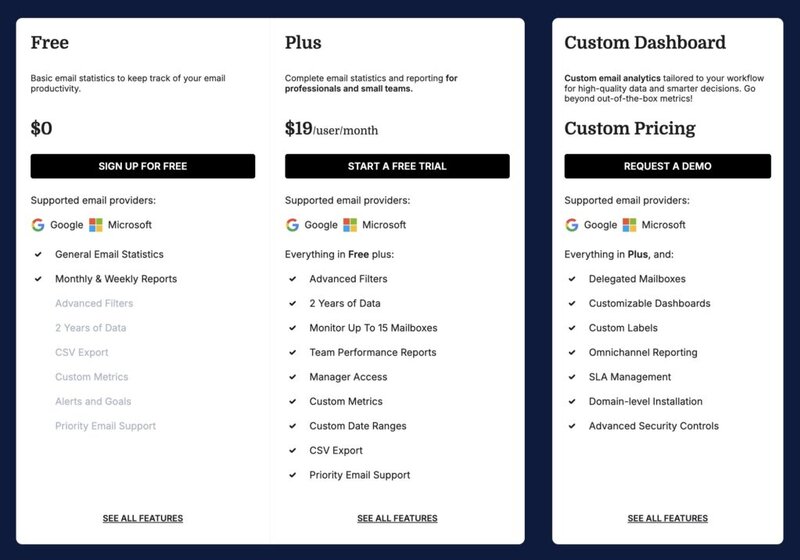
One key thing to note about Email Meter is that it’s best for enterprise companies. This is because the lower-tier plans have limitations that restrict the number of filters and metrics you can access. For small companies, it’s not going to deliver the value you need.
Like timetoreply, there are alerts and goal-setting features built in, which you can access on the Pro plan and above.
Key features
Reporting: Highly visual reports that make it easy to see key metrics
Privacy-friendly: Like timetoreply, Email Meter only looks at your email metadata and doesn’t read your email content.
Segmentation options: You can create reports and segment data based on recipients, domains, or subject lines.
Data export: You can export all of your data to a CSV to work through it and create custom reports
Sends reports on autopilot: You can set it up to email reports every week or month, so you’re not chasing down stats all the time.
Checks the whole team’s performance: You can see how each person is doing in terms of email volume and responsiveness, side by side.
Tracks first reply speed: Lets you know how fast the first response goes out after someone reaches out. A good one if you care about being prompt.
Pros
Plugs into your Google account without plugins or installs
Shows who’s overloaded and who’s cruising through emails
Sends scheduled reports straight to your inbox
Cons
Most features are only available on the Pro plan and above
Alerts and goals are not available on lower-tier plans
EmailAnalytics is a platform to help you visualize your team’s email activity and lead response times across your company.
It’s primarily designed for Gmail, so it’s a good option. Once you connect your team’s Gmail accounts, it’ll pull in your past email data and start tracking everything moving forward.
There are highly visual dashboards that make it easy to compare and contrast trends over time, and it’s ideal for managers who want to get a quick overview of their team’s email performance.
Key features
Email flow snapshots: Gives you a simple look at how many emails are going in and out each day, per person or team.
If you want to integrate your Gmail Analytics tool into your business, features like goal setting are essential, as they ensure your team can use the data in an actionable way.
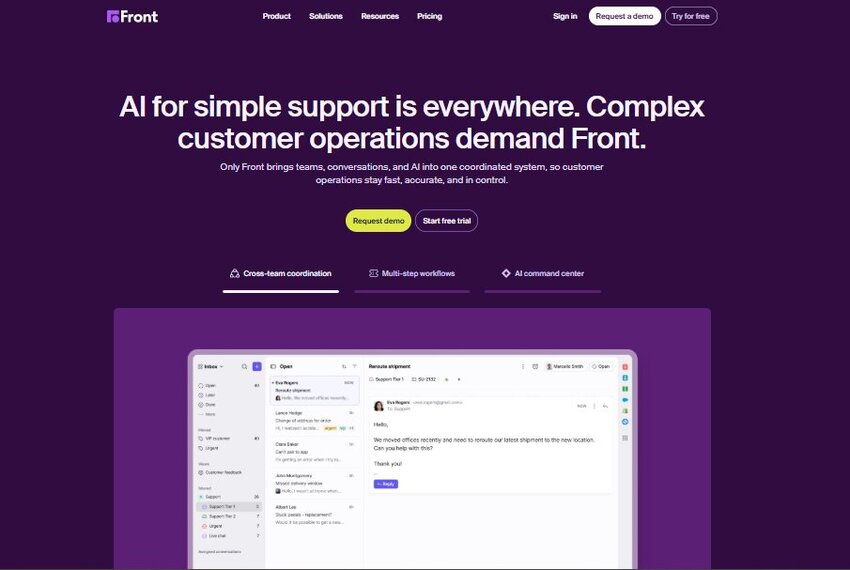
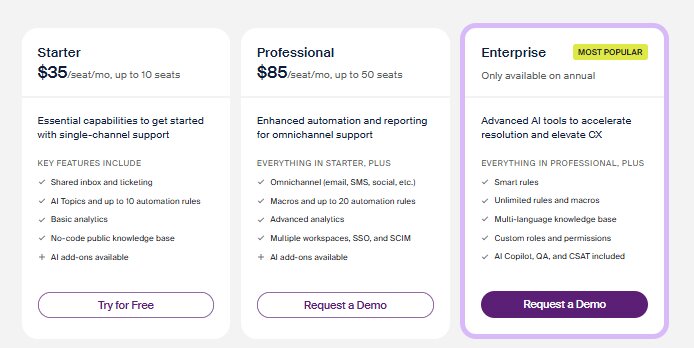
Front is an email management platform designed to help your team bring all of your email activity to one place.
Rather than being a Gmail analytics tool, it has a much broader goal — to be the go-to place for all of your email activity. Your whole customer service team can use it to track email interactions with customers, and add notes or jump into conversations that other team members are having, making it ideal for collaboration.
There are email analytics built into the platform, but you’ll need to be ready to commit to working from Front, rather than using your regular Gmail inbox.
Key features
Shared inbox tool: See all of your team’s inboxes and email activity in one place.
Collaboration features: Mention team members, leave comments on email threads, and assign email tasks to people.
Integrations: You can connect Front with 100+ other tools to improve your email workflows.
Analytics: See trends in your email volume and activity.
Reply‑time insights: It logs how long each reply takes and flags any threads running cool.
Simple automations: Auto‑assign new tickets, send reminders, or reroute messages based on keywords—set it once and forget it.
SLA markers: Conversations that need attention by a certain hour get a clear banner so you never miss a deadline.
Pros
Combines Gmail, chat, and social inboxes in one shared view
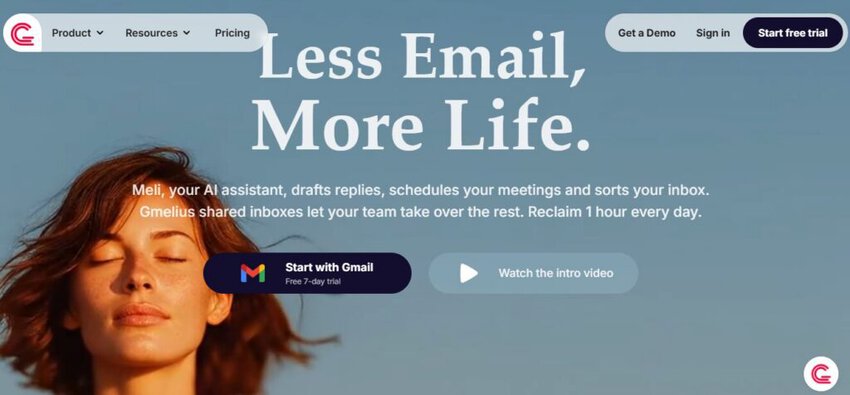
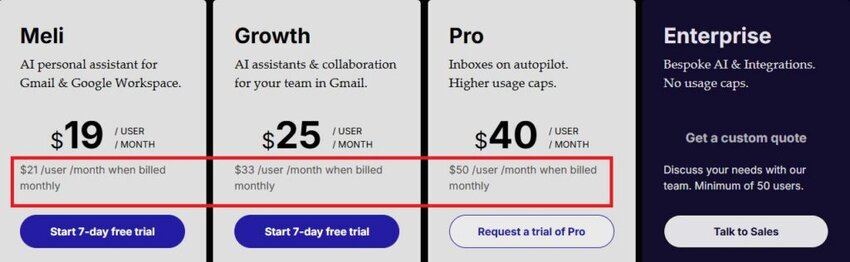
Gmelius is a Gmail analytics tool that hooks into your Gmail inbox, keeping an eye on how messages move in and out. It logs counts and tracks reply times. No jumping between tabs, as everything shows up right where you work.
You can filter emails by labels or teammates. See who clears the most emails and who’s falling behind. A heatmap lays out your inbox’s daily rhythm so you know when things get busy.
It can send a summary to your inbox or push stats into Slack and Trello. But if you need heavy‑duty reports or fancy dashboards, this might not be the tool for that.
One‑click sync: Connect Gmelius to your Gmail account in a flash — no downloads, no fiddling with settings.
Response‑lag monitor: Ever wonder who’s taking too long to reply? This feature flags slow threads so you can step in.
Inbox rhythm heatmap: See a color‑coded map of when emails flood in and when things quiet down — perfect for spotting peak hours.
Volume‑trend snapshots: Daily and weekly send/receive counts show up as simple graphs, so you catch surges or dips without digging.
Team leaderboard view: Line up everyone’s key stats in one place, reply times, volumes, and first‑reply speeds, so you know who’s on fire and who needs backup.
Tags and filters: Want to focus on “Sales” or “Support” only? Filter your stats by any Gmail label or custom tag in seconds.
Auto‑digest emails: Skip the manual exports — Gmelius shoots a neat summary to your inbox on a schedule you pick.
Pros
Works inside Gmail — no need to switch tabs or launch separate apps
Maps your busiest hours with a quick‑scan heatmap
Pushes metrics to Slack or Trello through built‑in connectors
Cons
Gmail analytics features feel secondary to its collaboration tools, so reporting options can seem limited
Custom report creation is minimal — you’re mostly stuck with pre‑configured charts
Mobile insights are pared back to the essentials, so you miss some dashboard detail on the go
What are the most common Gmail analytics challenges?
If you want to master Gmail analytics, you need to understand and overcome the common challenges you may face. Let’s discuss the most common ones.
Overwhelming data volume
When you first dive in, the raw numbers can feel like a tidal wave. You stare at charts of send/receive counts, reply times, and labels, and wonder where to start.
So, how can you overcome this?
Pick two or three metrics that matter most, such as average reply time and inbox peaks, and focus on them. Once you’ve got a handle on those, branch out to other stats.
Inconsistent labeling
If you rely on Gmail labels to slice your data, any missed or mis‑tagged message skews your results. One support ticket ends up in “Sales,” and your numbers go out of whack.
To avoid this, audit your labels weekly. Encourage teammates to add tags right when they hit “Send,” and keep a shared list of approved labels handy.
Limited tool integrations
Your CRM, chat app, and project tracker all live elsewhere. If Gmail analytics can’t feed into those systems automatically, you end up wrestling with manual exports.
What can you do?
Look for Gmail analytics tools that offer a Zapier or native connector. Even a simple webhook can reduce copy‑and‑paste work.
Privacy and compliance worries
Many teams hesitate to use Gmail analytics tools when they fear exposure of sensitive data. Headers-only solutions ease that concern, but not everyone knows the difference.
So, share a quick explainer with your stakeholders: “We only read who, when, and how fast — never the email body.” That transparency wins buy‑in.
Think of Gmail analytics as a way to track your email activity and evaluate performance. It turns raw send/receive numbers and reply speeds into charts and reports.
Instead of guessing how busy you are, you see clear data, such as who’s handling the most emails or when your busiest hours hit. These help improve your customer support efficiency.
2. Why should I keep an eye on email response times?
Fast replies show people you’re on top of things and you care. If you notice your team averages two hours but you want one, that red flag tells you to tweak schedules or add reminder alerts.
Spotting slowdowns early keeps customers happy and prevents questions from piling up.
3. Can you get analytics from Gmail?
Not directly in Gmail’s default view. You won’t find charts or dashboards in Gmail’s interface.
But you can pull basic numbers (like how many messages a label contains) using search operators or Gmail’s labels. For full Gmail analytics, you need third-party tools like timetoreply.
4. How can I analyze emails in Gmail?
You can use third-party Gmail analytics tools to track key metrics and get insights into your email performance.
5. Which are the best Gmail analytics tools?
There are many Gmail analytics tools you can use, but our top picks are timetoreply, Email Meter, EmailAnalytics, Front, and Gmelius.
6. What are the benefits of using Gmail analytics for businesses?
Gmail analytics help you spot reply delays early, improve email response times, and manage team workloads better. It gives you clear data to enhance team productivity, boost customer satisfaction, and track performance.
7. What metrics should I track with Gmail analytics tools?
Focus on specific metrics like average reply time, first response time, first contact resolution rate, click-through rate, and escalation rate. These Gmail analytics show how fast and effectively your team handles customer emails and where you need to improve.
8. Can tracking Gmail analytics improve customer satisfaction?
Yes, Gmail analytics helps you track and improve how fast you send email replies. When customers get quick and clear responses, they feel valued, which leads to better satisfaction.
Conclusion
Skip the endless charts. Zero in on a couple of numbers, such as average reply lag and average response time, and watch how small tweaks make a big difference.
Block time to clear your morning backlog, nudge teammates slipping behind, or shuffle meetings around so emails don’t pile up. When you work from real Gmail analytics data, improving response speed and keeping everyone on the same page becomes way simpler.
For a quick setup that hooks into Gmail (and Outlook) in minutes, give timetoreply a spin. You’ll see those key stats without the headache. You can book a demo to test it before you commit.
Improve Your Customer Experience with Quick Replies
Get live inbox alerts and reply quickly to customer emails with timetoreply
Head of Customer Success @ timetoreply Barry Blassoples is the Head of Customer Success at timetoreply, where he helps customer-facing teams boost revenue and protect brand reputation by providing actionable insights to improve their business email response times. He has over 15 years of leadership experience across customer success, sales, and marketing roles in high-growth tech companies.
Latest Blogs
The latest advice on reply time & lead response optimization, and email performance improvements
Time to see the insight, improvements and results for yourself?
Trusted by high-performing inbound sales teams and customer-facing teams globally. Close more deals and delight more customers with the faster, smarter, deeper email analytics and performance optimization software that works straight from your team’s inbox.