
For customer-facing teams, it also explains why reaching inbox zero should be paired with reply-time tracking. This ensures that customers still receive timely responses, which increases satisfaction and revenue.
Inbox zero in Outlook is a method for managing your emails so your inbox stays empty. Or, nearly empty most of the time. The goal isn’t to have zero emails forever. To reach inbox zero in Outlook, you need to delete, reply to, archive, or delegate emails for later action.
If you’re a customer support agent, having a cluttered inbox slows reply time and reduces customer satisfaction.
Customers will likely switch to competitors that provide faster responses. According to Email Analytics (2026), the average email response time during working hours is four hours and 50 minutes. But customers expect faster responses.
In this guide, we’ll break down how to reach inbox zero in Outlook. You’ll learn four Ds to process each email, and you’ll learn Outlook features that help you reach inbox zero faster. You’ll also learn why inbox zero isn’t enough for customer-facing teams, and how to track and improve reply times.
Inbox Zero in Outlook is a method for managing emails so that your Outlook inbox stays empty or nearly so.
In practice, instead of letting your emails pile up, you address each email as it arrives. That means reply to, delegate, schedule, file, or delete emails. No email should remain unread or forgotten. Here’s an example of a cluttered inbox next to a clean inbox:
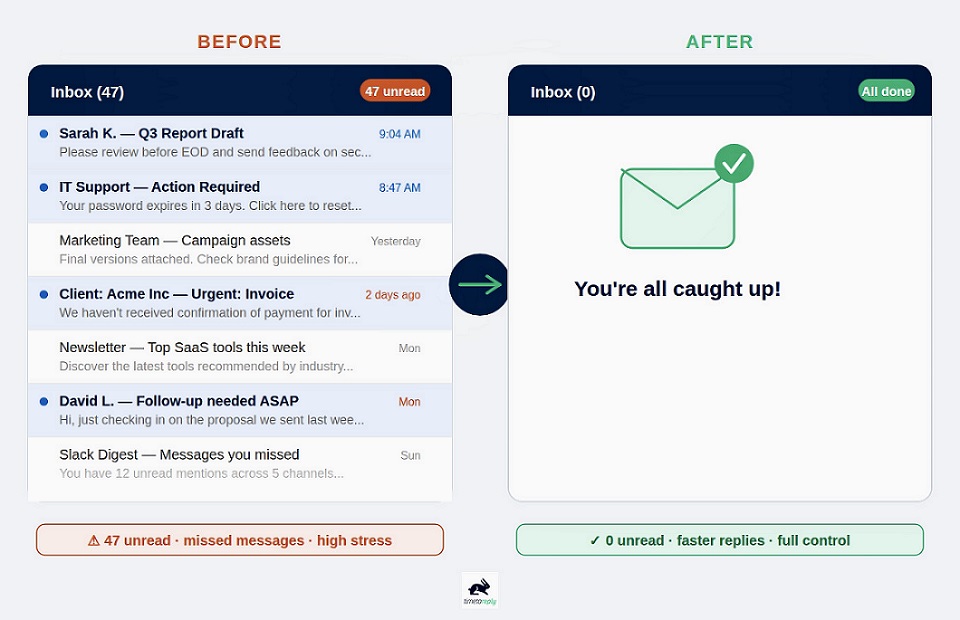
Image via timetoreply
This way, your inbox stays organized and easier to manage. For customer-facing teams, it can also help improve email response times and prevent important emails from being missed.
It’s the process of managing your emails in outlook so that your inbox remains empty or nearly empty. This helps you avoid missing important emails, such as from customers or managers.
Also Read:
A clear inbox helps improve your email productivity and customer relationships. You stop losing important messages. Each email is handled once, so you’re not re-reading it multiple times.
A clean inbox supports faster replies, but only if you track reply times and improve them while clearing your inbox. Response speed is one of the factors that determines customer satisfaction. Slow responses can lead to churn.
In fact, timetoreply reports that 88% of customers expect a reply within an hour. Improving response time helps increase customer satisfaction, which leads to more long-term revenue.
To reach inbox zero in Outlook, start by sorting emails by sender and deleting them. Then unsubscribe from lists you don’t read and archive emails older than two weeks. This three-step process is the beginning of improving productivity and reducing response times.
Start by opening Outlook. Then select Filter at the top of the messages pane:
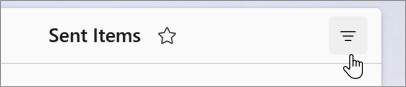
Image via Microsoft
Then choose From (Sender). Review each sender group and identify newsletters or promotions you no longer need.
Select multiple messages from that sender and delete them at once. This helps you remove large amounts of inbox clutter quickly without reviewing every email individually.
Deleting clutter is pointless if it increases the next day. So, stop it at the source. If a sender offers an unsubscribe option, use it first.
For emails you still need but don’t want in your inbox, use Outlook’s Sweep feature. This helps automatically move them to another folder.
In Outlook, select a message. Then click on Sweep in the ribbon:

Image via Microsoft
Choose which folder you want to move emails from that sender to. Then click Ok. Together, unsubscribing and Sweep help reduce incoming clutter and improve email management.
Anything older than two weeks is unlikely to need action today. Select those emails and move them to your Archive folder. Archived doesn’t mean deleted. You can still access those emails later.
Go to the search bar in Outlook and enter a date filter to find older messages. For example, “received: <01/01/2022.” Select the emails you want to archive. Then choose Archive.
If you don’t see an option to archive emails, go to Settings > Mail > Customize Actions. Then add Archive to your tool bar:
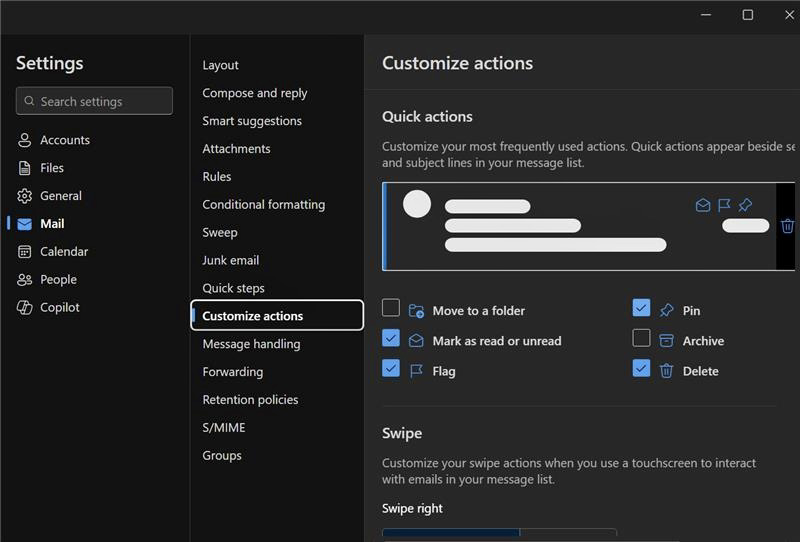
Image via Microsoft
Also Read:
The four Ds include delete, delegate, do, or defer. Work from the top of your inbox down, and apply one of these four actions to each email.
Here are the four Ds of achieving inbox zero in Outlook at a glance:
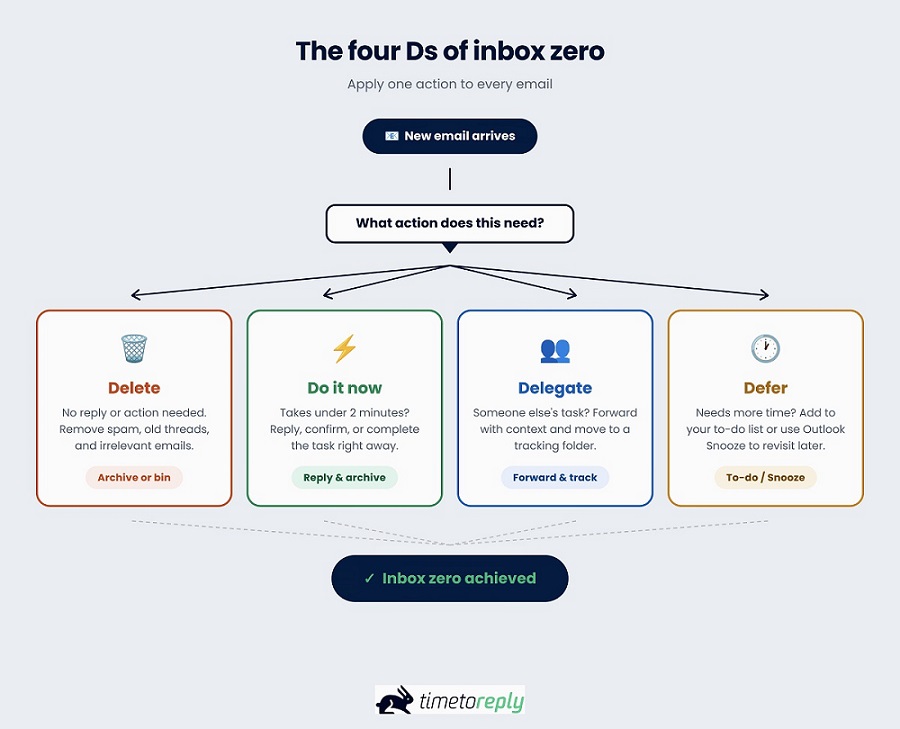
Image via timetoreply
If an email doesn’t need a response or future action, delete it right away. Remove spam, promotions, and email threads that are no longer relevant. If you think you may need the email later, archive it instead.
If the email takes around two minutes or less to handle, do it now. Reply, confirm, or complete the task, then archive the message. This two-minute rule helps stop small tasks from piling up in your inbox.
If certain emails require an action from someone else, assign it to the right person as soon as possible. Forward the message with any context they need to complete the task.
Then archive the email or move it to a folder for tracking. This helps improve email management.
If you receive an email with a task that requires more than five to 10 minutes of work, defer it. Add the task to your to-do list. Or use Outlook’s Snooze feature to remind you about it at a specific time. We’ll break this down in the next section.
Process each email once with the four Ds. Delete it, delegate it, or do it in under two minutes. You can also defer it. Meaning, add it to your to do list and do it later. The goal is to ensure you have a near-empty inbox every day.
To reach inbox zero, use Outlook’s features. These include Focused Inbox, Rules, Quick Steps, and Categories. Other features include Archive, Sweep, Snooze, and Search Folders. Here’s a quick breakdown of the features:
| Outlook feature | What it does | How it helps you reach inbox zero |
| Focused Inbox | Separates important emails from less urgent ones | Helps you focus on priority emails first |
| Rules | Automatically moves or organizes incoming emails | Reduces manual sorting and inbox clutter |
| Quick Steps | Combines multiple actions into one click | Process and archive emails in a single tap |
| Categories | Labels emails with tags | Find emails by search, not digging through folders |
| Archive | Moves emails out of the inbox without deleting them | Clears inbox space while keeping emails accessible |
| Sweep | Automatically moves or deletes future emails from a sender | Prevents repeat email clutter from building up |
| Snooze | Temporarily hides an email until a chosen time | Keeps non-urgent emails out of your inbox |
| Search folder | Automatically displays emails matching specific criteria | Helps you find important emails quickly |
This separates your inbox into two tabs — Focused and Other. Important emails stay on the Focused tab while the rest are still accessible on the Other tab. Outlook takes into account the contacts you interact with the most and adds them to the Focused tab.
To turn on Focused Inbox, go to View > View Settings > Mail > Layout. Then click on Sort messages into Focused and Other:
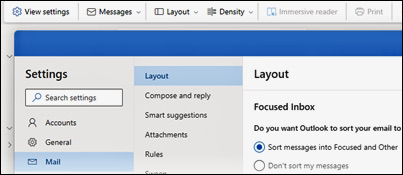
Image via Microsoft
Rules automatically sort emails when they land in your inbox. To create a rule in the new Outlook, right-click an email. Hover over Rules > Create Rule. Choose a folder where you want all emails from that sender to go. Then click Ok..
Quick Steps combine several actions into one click. Build a “Done” step that marks a message read, categorizes it, and moves it to Archive in a single tap.
To create a Quick Step, go to Mail > Home tab > Quick Steps > Manage Quick Steps:
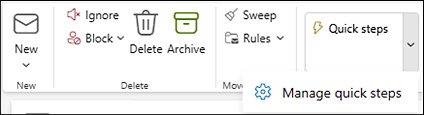
Image via Microsoft
Then click +New Quick Step. Type a name for your Quick Step. Under Choose an action, select an action you want the Quick Step to do. You can add multiple actions.
Add a category tag or label to Outlook emails. For example, tag emails as “Follow up,” “Waiting,” or “Reading.” Then, you can find them later by typing the tag in the search bar. This helps you respond faster to important emails instead of digging through your inbox.
In Outlook, select the emails you want to categorize. Click Categorize, and choose the category you want to use.
Archive clears emails that you have already processed. Simply select an email and move it to the Archive folder. Sweep lets you move emails from specific senders to folders, such as trash.
Snooze hides an email for a set amount of time. Right-click the email, click Snooze, then choose a date and time:
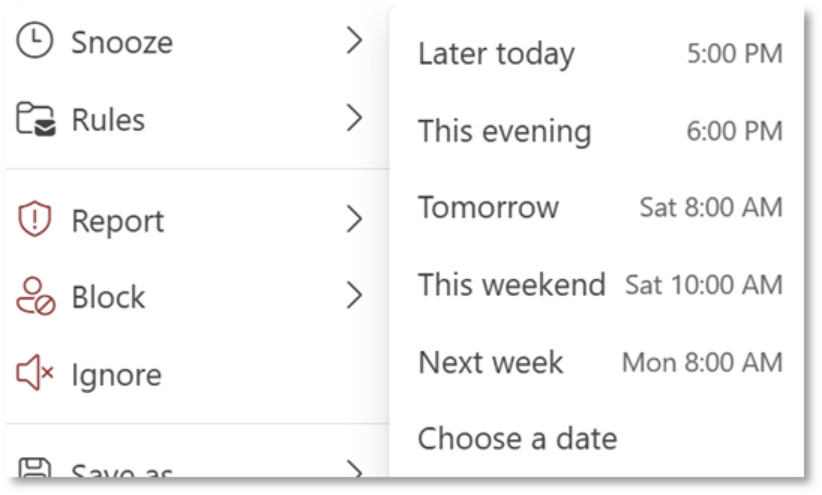
Image via Microsoft
Search Folders show all emails matching a condition, such as everything unread or flagged.
Under Search Folders in Outlook, click Create new Search Folder. Select a Search Folder list and choose the type you want to add:
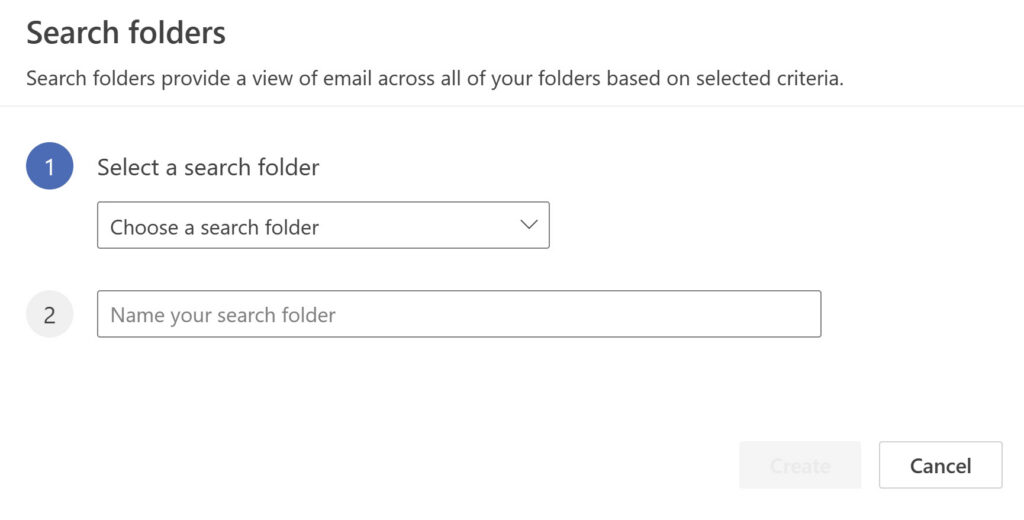
Image via Microsoft
You can also use keyboard shortcuts like these in Outlook:
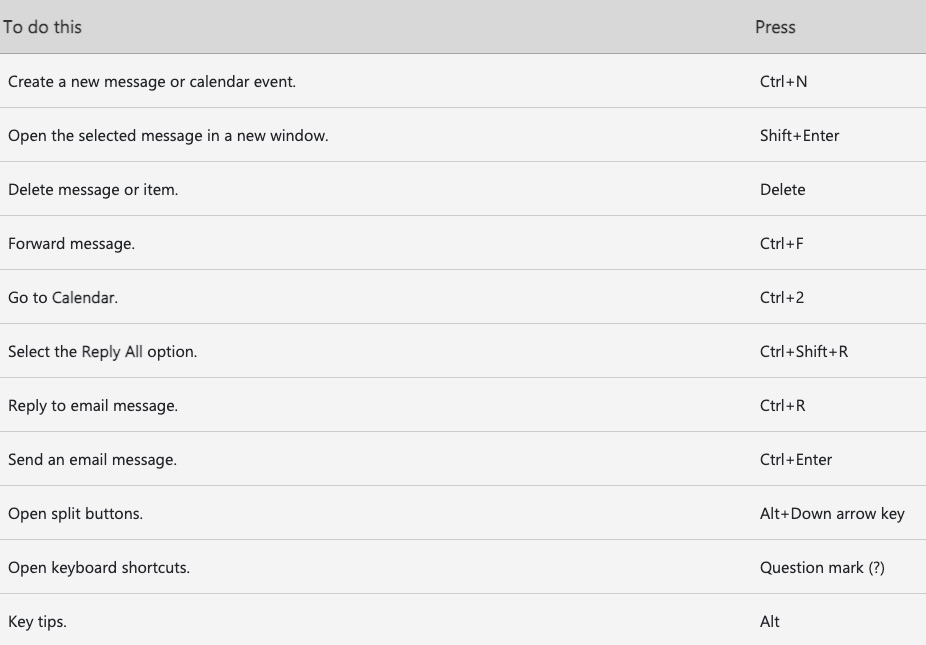
Image via Microsoft
Use Outlook’s features such as Focused Inbox, Rules, Quick Steps, Categories, Archive, Sweep, Snooze, Search Folders, and keyboard shortcuts. This helps you prioritize important emails, reduce inbox clutter, and process messages faster.
Also Read:
For customer-facing teams, inbox zero is not proof of good customer service. One thing we see often is that customer service teams rush to achieve an empty inbox. But this doesn’t guarantee faster replies. You need to measure reply time first to understand what’s working.
Shared mailboxes also create confusion about who should respond to specific queries. This can lead to missed emails.
Archiving an email means you have filed it. It doesn’t mean the customer got a timely, helpful answer.
Two agents can both reach inbox zero, while one replies in 20 minutes and the other takes a day. The inbox can look identical, but the customer experience doesn’t.
Shared mailboxes, such as support@ or info@, can be difficult to manage because multiple people can see the same inbox. It can be unclear who is responsible for replying to each email.
After reaching inbox zero, measure reply time to understand whether customers are receiving fast responses. If not, train your team and use tools to automate real-time alerts for important messages.
Tools such as timetoreply track reply times and SLAs inside Outlook and Microsoft 365. Managers can see response times by person, team, and shared mailbox. In fact, some of our customers have achieved measurable results:
See how email analytics for Outlook and Microsoft 365 can work for your team.
Reaching inbox zero in Outlook is the start. The number that matters is reply time. This shows whether your team is responding to customers fast. You can only improve it once you measure it.
Outlook’s native features, which we explained earlier, can help you reach inbox zero faster.
When you want visibility into how fast your team replies to customers, consider investing in automation tools. These include email analytics tools such as timetoreply, email clients, and shared inboxes:

Image via timetoreply
The email analytics software timetoreply tracks reply times, SLAs, and email productivity across Outlook, Microsoft 365, and Gmail. This is done without changing your workflow.
The timetoreply tool respects your privacy and only analyzes email header information. It doesn’t read email content or attachments. It’s Google Security Certified and carries ISO 27001, SOC 2, GDPR, and HIPAA certifications.
Once you’ve reached inbox zero in Outlook, timetoreply helps you measure your customer support team’s performance. You can then reduce response times and improve customer satisfaction.
You can also use tools such as Email Meter or EmailAnalytics:
Use email clients like Superhuman to improve productivity, or shared inboxes, such as Front and Hiver:
Outlook’s features like Focused Inbox or Quick Steps are effective for reaching inbox zero. But, for improving reply times, use email analytics tools like timetoreply, Email Meter, or EmailAnalytics. Add email clients and shared inboxes to improve productivity and collaboration.
Also Read:
Inbox zero in Outlook works best if you manage a high volume of emails, respond to customers, or work with SLAs. The inbox zero method helps you stay organized while reducing the risk of missing important messages.
It’s useful for customer support teams that need to reply to customers faster, collaborate with team members, and remain productive.
It may be less useful if email isn’t a major part of your day. In that case, regularly checking and organizing your emails into folders may be enough.
It’s beneficial for customer service teams that need to remain organized with tasks, reduce response time, and collaborate with other agents. If you don’t use email often, then checking and organizing emails is enough.
To maintain inbox zero in Outlook, process emails in batches, reduce new email clutter, and use Outlook’s features, like Rules. You also need to review your inbox regularly and track reply times:
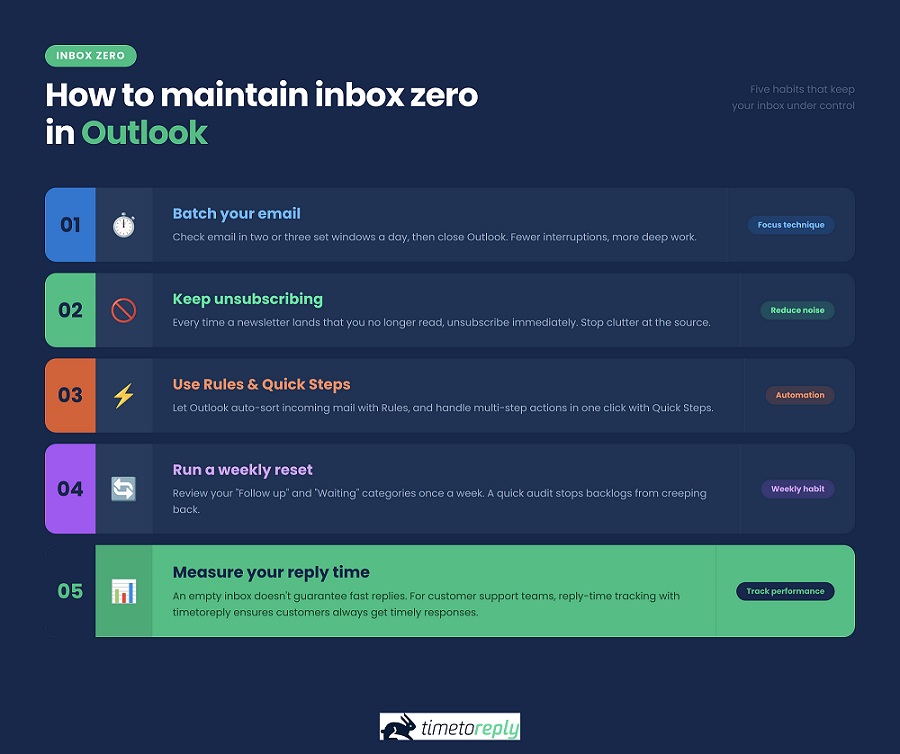
Image via timetoreply
Batch your emails, continue unsubscribing form lists you don’t read, and use Outlook’s native features to automate tasks like sorting emails. Always review your inbox weekly, and, for customer support teams, measure response times.
Also Read:
1. What is inbox zero in Outlook?
This is the process of managing your Outlook emails so that your inbox remains empty or nearly empty. As soon as an email arrives in your inbox, address it to avoid a pile-up. Handle each email once, by replying, delegating, scheduling, filing, or deleting it.
2. How do I get to inbox zero in Outlook fast?
Start by clearing the backlog in one focused session. Sort your inbox by sender and bulk-delete old newsletters and alerts. Unsubscribe from lists you no longer read. Then, select everything older than two weeks and move it to the Archive folder in Outlook.
3. How do you delete thousands of emails in Outlook?
One of the best inbox zero tips is to sort your inbox by sender or date, select a whole group, and delete or archive it in one action. Classic Outlook can limit very large bulk actions, so work in batches if needed.
4. What are the four Ds of inbox zero?
The four Ds are delete, delegate, do, and defer. Delete or archive anything with no value. Delegate messages to someone who should handle the task. Do tasks that take two minutes or less right away. Defer longer tasks to your to-do list or snooze them.
5. What is the 3-2-1 zero email method?
This is a time management system used to maintain an empty inbox. It’s also called 3-21-0. Check your inbox three times a day. Limit each checking session to 21 minutes. The goal is to end each session with zero emails in your inbox.
6. Should I use Focused Inbox for inbox zero?
It depends. Focused Inbox splits important messages from the rest. Outlook chooses which emails go into the Focused inbox based on the email addresses that you interact with the most. The rest of the emails go to the “Other” inbox. Test it out to see whether it works for your needs.
7. Should I use Folders or Categories for inbox zero in Outlook?
You can choose depending on your needs. For example, Folders let you decide where each email should be sent. Then, you can access all emails in that folder later. Categories like “Follow up” or “Waiting” tag an email, and you can search the tag to find it instantly.
8. Is there an inbox zero app or add-in for Outlook?
Outlook’s built-in features are enough for most people to reach inbox zero. These features include Rules, Quick Steps, Archive, Sweep, and Snooze. Teams that need to track and improve reply times often add an analytics tool, such as timetoreply, to Outlook.
9. How do I stop inbox zero from slipping in Outlook?
Build small habits. Process email in set windows rather than all day. Keep unsubscribing from email lists. Use Outlook’s native features like Rules and Quick Steps to handle routine mail automatically. Run a ten-minute weekly reset of your categories.
For customer support teams, measure reply time to ensure customers receive fast responses even when your inbox is clear.
10. How can a team measure inbox zero in Outlook?
Tools like timetoreply track response times and SLAs inside Outlook and Microsoft 365. You can see which agent has the fastest response times and use their techniques to train the rest of the team. This is important because an empty inbox doesn’t mean reply times are fast.
Also Read:
Inbox zero in Outlook is a process for managing emails to reach an empty or near-empty inbox. To do this, process each email using the four Ds: delete, do, delegate, or defer.
Outlook includes several features that make inbox zero easier to achieve. These include Focused Inbox, Rules, Quick Steps, Categories, Archive, Sweep, Snooze, Search Folders, and keyboard shortcuts.
To maintain inbox zero, process emails in batches and unsubscribe from unwanted lists. Review your inbox regularly and monitor reply times if you work in customer service. This is important because an empty inbox supports but doesn’t guarantee faster reply time.
You can use tools like timetoreply that connect to your Outlook inbox. Then track support team performance and get real-time alerts for important emails. Book a demo now.
Get live inbox alerts and reply quickly to customer emails with timetoreply

Head of Customer Success @ timetoreply
Barry Blassoples is the Head of Customer Success at timetoreply, where he helps customer-facing teams boost revenue and protect brand reputation by providing actionable insights to improve their business email response times. He has over 15 years of leadership experience across customer success, sales, and marketing roles in high-growth tech companies.



Trusted by high-performing inbound sales teams and customer-facing teams globally.
Close more deals and delight more customers with the faster, smarter, deeper email analytics and performance optimization software that works straight from your team’s inbox.