
Learning how to add a shared mailbox in Outlook can save your team a lot of time. When several people can access an inbox, messages do not get stuck with just one person.
Businesses use shared mailboxes to manage common addresses and keep replies moving. They are useful for support teams, sales teams, and any group that handles a high volume of email.
This article explains how to create one in Outlook and what to do after setup. It also covers best practices and the main metrics that help teams stay on track.
A shared mailbox in Outlook is a centralized email account that multiple team members can access. Learning how to add a shared mailbox in Outlook is an important skill.
This is useful for teams that want to collectively manage common email addresses, such as a support@, info@, or sales@ email.
Shared mailboxes are created in Microsoft Exchange and then added to the Microsoft Outlook account of each person who needs access. Once added, the shared mailbox will appear in the user’s Outlook account just like any other email account, and they can send and receive customer service emails from it. Nifty right?
Companies using shared mailboxes should keep in mind best practices for shared mailboxes, including rules and tags, folders and labels, security, and insights.

Shared mailboxes help teams stay on top of busy inboxes. They support faster replies, better teamwork, and cleaner email handling across support, sales, or admin teams.
Before you learn how to add a shared mailbox in Outlook, you should see what it can do for your team. Here are the main benefits of using a shared mailbox in Outlook.
Here are some of the major benefits of using a shared inbox:
Also Read:
A distribution list is a list of email addresses that can be used to send emails to multiple people at once. A shared mailbox is simply an inbox that multiple people can access. The key difference is that the former is not an inbox, but just a list of email addresses.
Distribution lists are typically used to send out newsletters, announcements, or other mass emails. Unlike a shared mailbox, a distribution list does not have its own inbox. Emails sent to the list are delivered directly to the inboxes of the individuals on the list.
On the other hand, a shared mailbox does have its own inbox, and all emails sent to it are stored in the shared inbox. This allows multiple people to access and manage emails and respond directly from the shared mailbox.
A shared mailbox can also be used to store and share other information, such as documents, calendars, and contacts. This ensures all team members have up-to-date information and a central task list.
Yes, you need a license to add a shared mailbox in Outlook. The specific type of license needed depends on your version of Microsoft Exchange and your subscription type.
For example, with an Office 365 Business Premium subscription, you can create and use shared mailboxes without needing additional licenses. However, if you have an Exchange on-premises setup, you may need to purchase an Exchange CAL (Client Access License) for each user who needs access to the shared mailbox.
Also Read:
If you’re wondering how to add a shared mailbox in Outlook, it’s a simple process that can improve collaboration and response times. You can create one from the “recipients” tab in the Exchange admin center.
Follow these steps to create a shared mailbox in Outlook:
Once the shared mailbox has been created, you can add it to your Outlook account window as follows:
It is as simple as that!
Now, you can begin managing the shared mailbox from your Outlook account. You can configure alerts for new messages in the shared mailbox so you never miss a critical email. Also, pin or prioritize folders from the shared mailbox for quick access.
Also Read:
The best shared mailboxes are easy to manage, easy to track, and easy for teams to work from together. That usually comes down to clear ownership, consistent workflows, and regular inbox cleanup.
Learning how to add a shared mailbox in Outlook is a good start, but setting it up is not enough. You need good shared mailbox best practices to collaborate effectively.
Below are the key best practices every team should adopt when managing a shared mailbox in Outlook.
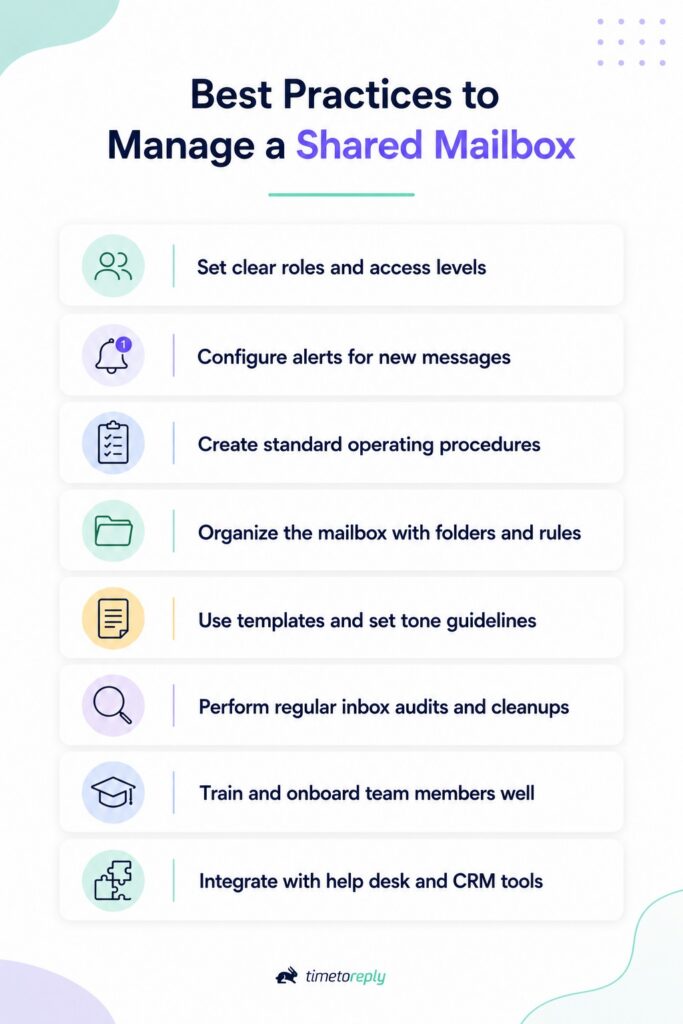
One of the major challenges of managing a shared mailbox is determining who is responsible for what. When multiple people access and respond to emails without clearly defined roles, the result is confusion, duplication, or even worse, unanswered emails.
To mitigate this, you can assign ownership of specific query types based on team structure, email type, or department. For example, you can allocate all technical queries to the support team, billing-related messages to the finance department, and general inquiries to administrative staff.
You may also choose to assign ownership by day or shift. For instance, the morning shift support team replies to new messages, while the evening shift handles follow-up emails. You can designate a mailbox lead or supervisor to monitor performance and ensure the support team reply professionally to emails.
Additionally, ensure only the right team members have access. Not everyone needs full send permissions; some may only require read access or the ability to categorize or assign messages.
Timely response is important when managing a shared mailbox. Without proper notifications in place, it’s easy for emails to sit unread, especially when team members are handling several emails.
Outlook does not automatically generate desktop or sound notifications for messages in shared mailboxes unless they are specifically configured. So each user with access to the shared mailbox can manually set up custom rules or alerts to ensure that incoming emails are noticed immediately.
Here’s how to do this. Simply go to the “Rules” section in Outlook, then select Manage Rules & Alerts. From there, you can create a new rule for the shared mailbox that triggers a desktop alert or plays a sound when a message arrives.
For teams working on the go, ensure the Outlook mobile app is installed and configured to deliver push notifications for updates to shared mailboxes.
Despite knowing how to add a shared mailbox in Outlook, without an efficient email management process, your team may respond to emails in different ways. Some may prioritize certain customers, others may misinterpret the tone, and some may forget to close the loop entirely.
An SOP provides a centralized guide on how to handle all aspects of your primary mailbox. Your SOP should include:
This SOP should be made accessible to all team members and included in onboarding materials. It should also be updated periodically to reflect changes in workflows, tools, or business needs.
Also Read:

An unorganized shared mailbox is a breeding ground for errors and inefficiencies. Emails can easily be lost or ignored in a cluttered inbox. To ensure order, you can establish a logical folder hierarchy, implement rules for auto-sorting, or use color-coded categories or flags.
Here’s a recommended folder structure you can follow:
Additionally, you can use email rules in Outlook to automatically move emails to these folders. This can be done based on subject line keywords, sender addresses, or the content itself.
For example, any email with “invoice” in the subject line can go to the billing folder. This will help to minimize manual sorting and allow team members to focus directly on relevant queries.
Color categories can also help distinguish emails visually. You can use colors like red for urgent, blue for internal, green for escalated, and so forth. Once you establish rules and categories, train your team to use them consistently.
Consistency is key when multiple agents respond from the same mailbox. Customers should receive the same high standard of professionalism regardless of who is replying. This can only be achieved by using pre-approved templates and establishing brand tone of voice guidelines.
Templates can be created for:
You can use tools like Outlook’s Quick Parts to store reusable content, or shared documents hosted in a centralized knowledge base. This can reduce the time spent crafting responses from scratch and speed up first contact response and resolution.
Be sure to review templates periodically for accuracy and brand alignment. In addition, you can publish tone guidelines covering greeting and closing styles, as well as sign-off formats.
This will help everyone to adhere to the same style and message structure, even across different departments.
Over time, shared mailboxes can accumulate several threads that may clutter up workflows. This is why regular cleanups are important to prevent inbox overload, and to ensure that important communications are easy to find.
Common shared inbox audit activities may include:
You can set a recurring schedule for mailbox maintenance, which can be monthly or quarterly. This is also a great opportunity to collect feedback on what’s working and what’s not.
Also Read:
Knowing how to add a shared mailbox in Outlook is just the first step. The real challenge lies in ensuring every team member knows how to use the shared mailbox correctly and consistently.
Without proper onboarding, even the most well-structured shared mailbox system can become chaotic. As such, every person who interacts with the shared mailbox should undergo training and onboarding on the specific protocols, expectations, and tools your team uses.
Some important aspects of training can include:
To make it easy, you can build a knowledge hub or internal wiki with quick-reference guides, recorded training sessions, and FAQ documents for continuous use.
Although Outlook and Gmail offer native support for shared mailboxes, teams with high email volumes or complex workflows may outgrow these basic setups.
In this case, larger teams can benefit from help desk platforms or CRM integrations that extend shared mailbox functionality. Popular email management tools include timetoreply for customer service analytics, Zendesk, Front, Freshdesk, and more.
Integration with these tools can allow you to automate repetitive tasks like tagging emails, sending canned responses, or triggering follow-up reminders.
Additionally, CRM tools can help pull in customer data such as purchase history, past tickets, or contact preferences, right into the email view. Your team can use data to personalize responses and resolve issues more effectively without switching between systems.
Also Read:
Once you’ve learned how to add a shared mailbox in Outlook, the next step is to monitor performance. First and average response times, resolution rate, and SLA compliance are important KPIs to track.
When you track key metrics, you can determine if the shared mailbox is being used effectively by your team. Take a look at some key customer service metrics you can track to optimize team performance:
This metric measures the time it takes for your team to respond to the initial customer email. It is one of the most critical customer service metrics because it forms a customer’s first impression of your responsiveness.
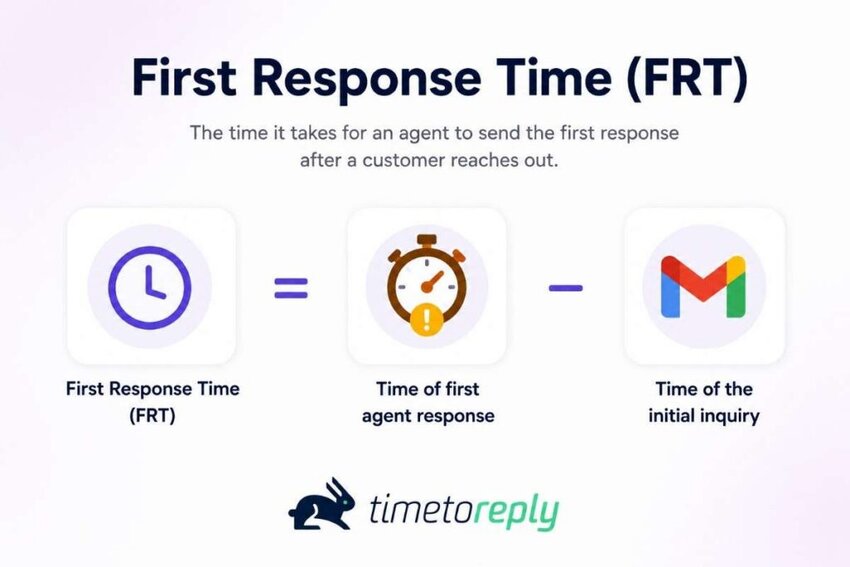
After you master how to add a shared mailbox in Outlook, tracking this metric can help you improve your company’s first contact resolution rate.
According to Salesforce, 77% of customers expect an immediate response to their queries. In fact, good customer service and prompt responses even drive repeat business.
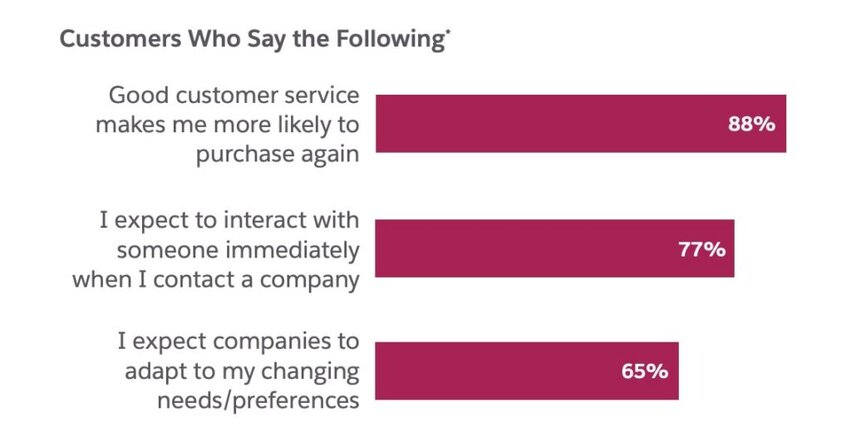
Image via Salesforce
This shows that response time is one of the most important factors in the customer service experience.
A short response time shows that your team is responsive and efficient. Even if a full solution takes time, a fast first reply, acknowledging receipt, and providing a timeframe can boost customer confidence.
Delayed email responses, on the other hand, can frustrate customers and damage your brand reputation. You can use this metric to set realistic service benchmarks for support staff to improve customer satisfaction.
The average email response time shows how quickly your team responds to all emails, not just the initial message.
While the first response time is critical, the average email response time provides a comprehensive view of how efficiently your team handles follow-ups and issue resolution.
According to a study by Email Analytics, the average response time across industries is over 14 hours. It’s around 4 hours and 50 minutes, if you consider only working hours. This varies by industry, as shown below.
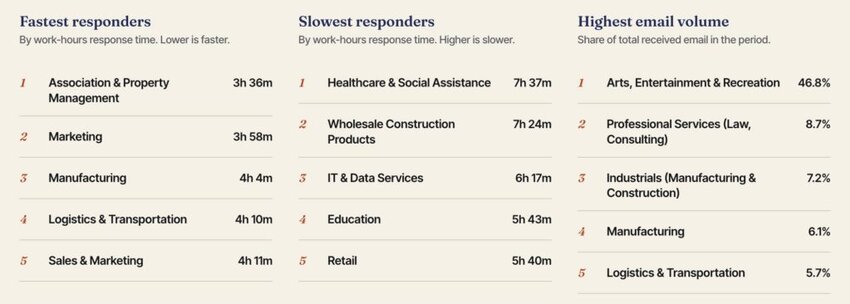
Image via EmailAnalytics
When customers have to wait hours between replies, it can lead to frustration. Maintaining quick customer replies throughout the communication cycle can help build momentum and trust.
Tracking this metric will allow you to spot workflow issues, inefficiencies, or staff overload that may be slowing down the response chain. You can track email response time in Outlook and compare it across weeks or months to monitor trends.
Also Read:
Tracking email volume means monitoring the total number of emails your shared mailbox receives and replies to over a specific period. This metric can help you understand your team’s workload and the intensity of customer interactions.
It can also help you identify busy periods and potential performance issues. For example, a sudden spike in incoming messages could signal a product issue, marketing campaign response, or seasonal customer demand.
When you track these spikes early, you can respond with appropriate strategies such as reallocating staff or triggering automated workflows to prevent overload.
This metric tracks the share of customer queries that are fully resolved relative to the total number of queries received.
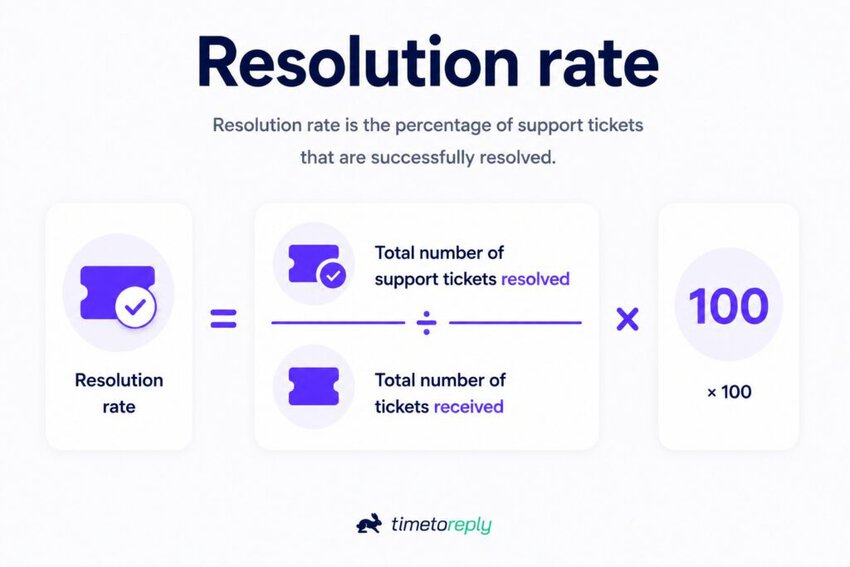
According to Zendesk, 85% of customers will leave a brand if their issue is not resolved in the first interaction.
This shows the importance of resolution rate, not only for operational efficiency but also for maintaining customer satisfaction. A high resolution rate typically indicates strong team performance and effective communication skills.
It also signals that your internal processes are efficient, enabling agents to handle queries quickly. However, if this metric is low, it could point to overly complex internal workflows or even communication breakdowns within the team.
SLA (Service Level Agreement) compliance rate shows how effectively your team meets predefined response or resolution deadlines. These SLAs are often established based on internal goals or customer expectations.
Such goals can be replying to all emails within 1 hour or resolving issues within 24 hours.
Use a tool like timetoreply to measure your SLA performance. It alerts you when your emails are about to cross the SLA threshold.
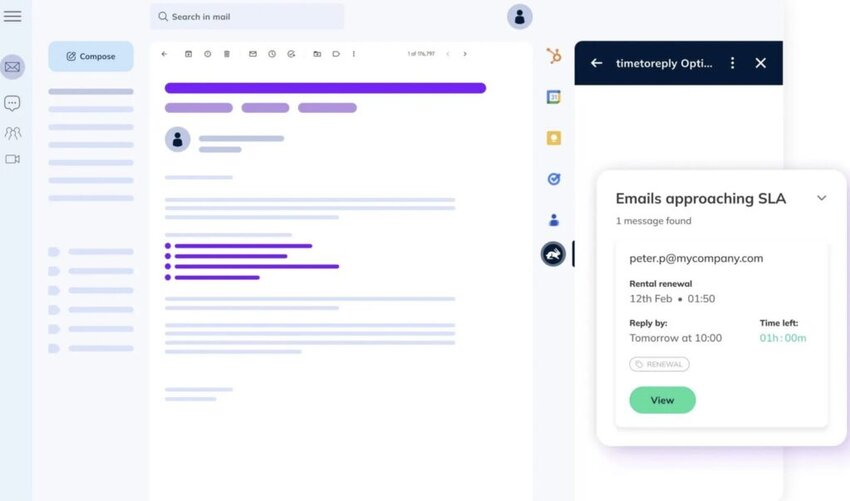
Image via timetoreply
When your team consistently meets email SLAs, customers feel valued which makes them more likely to return and refer others. On the other hand, repeated SLA breaches can damage your brand reputation and also violate client contracts.
Even with proper knowledge of how to add a shared mailbox in Outlook, you can integrate tracking tools that automate SLA measurement and reporting.
Also Read:
As a software tool, timetoreply helps boost the efficiency gains of shared mailboxes. With timetoreply, organisations can monitor the response times of shared mailboxes and ensure that all emails are being responded to within their agreed time frame.
Not sure what a realistic time frame is for your industry? Check out our blog detailing industry benchmarks.
Here are the ways in which timetoreply can help you manage shared mailboxes in Outlook more effectively.

The timetoreply tool provides real-time data on the average response times for shared mailboxes, which helps sales managers identify areas for improvement and make changes to improve reply time. After all, businesses that respond to leads in five minutes or less are 100x more likely to connect and convert opportunities.
The timetoreply tool offers insights into the performance of individual team members and the overall team, which helps managers to identify areas for improvement and allocate resources more effectively. This can lead to increased efficiency and better overall team performance.
Here’s a look at the reply time metrics it provides for each team member.
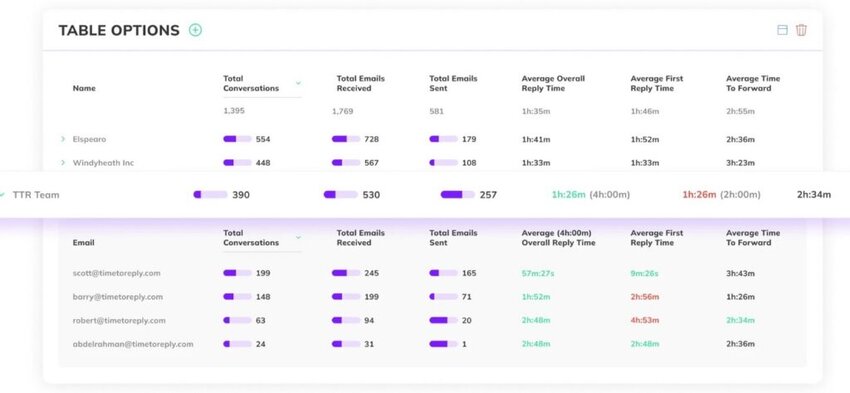
Image via timetoreply
The timetoreply tool provides data on the volume of emails being received by shared mailboxes, which helps organisations identify trends and patterns in customer inquiries. This information can be used to adjust staffing levels and ensure that the team has the resources needed to respond to customer inquiries promptly.
Access email analytics that provides granular and powerful insights into shared, including:
– Total conversations
– Internal conversations
– Inbound and outbound conversations
– Conversations with replies
– Completion ratio
– Average initial reply time
– Average overall reply time
– Domain or SLA reporting that tracks how well your team is responding to emails from a specific domain
The timetoreply tool provides a centralized platform for monitoring and reporting on shared mailbox performance. Team members have access to real-time data and insights on the performance of shared mailboxes. This aids collaboration and transparency within the team. When teams effectively collaborate, they become more productive and efficient.
By improving response times and providing real-time insights into team performance, timetoreply empowers customer service managers with the insights needed to enhance customer experience and improve customer satisfaction. When customers are happy, you can enjoy increased customer loyalty and a stronger brand reputation.
For companies seeking a powerful shared mailbox reporting and analytics tool for their Outlook and Gmail shared mailboxes, timetoreply offers unbeatable value.
Companies unlock data-rich insights that can inform customer engagement and sales efforts to benefit the company and its customers. timetoreply provides the highest levels of security and regulatory compliance.
Powered by a public API that unlocks a world of third-party integrations, timetoreply is a vital component of email productivity and performance.
Book a time to chat with us to see if timetoreply will be the right fit for your business.
Also Read:
1. How do I add a shared mailbox in Outlook manually?
To understand how to add a shared mailbox in Outlook manually, begin by logging into the Microsoft 365 Admin Center. From there, navigate to the Exchange Admin Center, click on “Recipients”, then click “Shared,” and then create a new shared mailbox by specifying the mailbox account name and shared address.
Once that’s done, assign user permissions so your team can access it. Users can then open Outlook, go to File > Account Settings > Add Account, and input the shared email address. That’s how to add a shared mailbox in Outlook in just a few instructions for smooth team collaboration.
2. Do I need a license to use a shared mailbox in Outlook?
For most Microsoft 365 plans, you can add a shared mailbox without assigning a license as long as it stays under 50 GB and isn’t accessed directly via login. However, if you exceed storage limits or need more advanced features like archiving or compliance, you may need to assign a license.
So while learning how to add a shared mailbox in Outlook, it’s also important to understand the licensing requirements.
3. Can multiple users access a shared mailbox at the same time?
Yes, multiple users can access and manage emails from the same shared mailbox concurrently. This is one of the key benefits of learning how to add a shared mailbox in Outlook. A shared mailbox makes real-time team collaboration easy. Everyone with the right permissions can read, reply to, and organize emails without overlapping efforts.
4. How can I track response times from a shared mailbox?
Once you’ve nailed how to add a shared mailbox in Outlook, the next step is optimizing its performance. You can track response times using email analytics tools like timetoreply. These tools integrate directly with Outlook to provide data on reply rates, average response times, email volumes, and even SLA compliance.
5. Can I customize access and rules after I add a shared mailbox in Outlook?
Absolutely. Once you understand how to add a shared mailbox in Outlook, you can manually add rules, categories, and access controls tailored to your workflow.
For instance, you can specify who can send as or send on behalf of the mailbox, assign shared folder permissions, and create auto-replies or routing rules. Learning how to add a shared mailbox in Outlook is just the beginning, customizing it ensures it can serve your team’s unique communication needs.
6. Can I assign emails to specific team members in a shared mailbox?
Yes. While shared mailboxes in Outlook do not have built-in ticket assignment, you can manually assign emails.
Many teams use folder lists, categories, flags, or naming systems to show ownership. For example, a team member may move an email into their folder or add a colored category after claiming it.
Some businesses also connect shared mailboxes with tools like timetoreply for better assignment workflows.
7. How can I improve visibility into shared mailbox performance?
The best way to improve shared mailbox visibility is to track the right email metrics. Teams should watch response times, email volume, and unresolved emails to understand how the inbox is performing.
Use a tool like timetoreply to turn shared mailbox data into simple reports and dashboards. The platform shows response trends, team workload, and inbox performance in one place. That helps managers improve accountability and keep customer replies moving.
8. Can shared mailboxes improve customer response times?
Yes, shared mailboxes often help teams respond faster to customer emails. Since several people can access the same inbox, your team is less likely to miss emails or respond late.
They also make it easier to handle high email volume during busy hours. Whoever is available can reply to pending emails, instead of waiting for one owner. That helps teams stay organized and gives customers a better support experience.
Also Read:
Shared mailboxes make it easier for teams to manage customer emails together. The whole team can see incoming messages and reply quickly. This helps teams respond faster and avoid delays.
Once you know how to add a shared mailbox in Outlook, the next step is to manage it effectively. Teams should use folders, categories, templates, and alerts to keep the shared mailbox clear and easy to handle.
It is also important to track response time, resolution rate, email volume, and SLA targets. These email analytics metrics help teams understand where delays happen.
The timetoreply tool helps teams track all of this with simple dashboards and reports. Book a demo to see how timetoreply can help your team work faster and stay organized.
Get live inbox alerts and reply quickly to customer emails with timetoreply

Head of Customer Success @ timetoreply
Barry Blassoples is the Head of Customer Success at timetoreply, where he helps customer-facing teams boost revenue and protect brand reputation by providing actionable insights to improve their business email response times. He has over 15 years of leadership experience across customer success, sales, and marketing roles in high-growth tech companies.



Trusted by high-performing inbound sales teams and customer-facing teams globally.
Close more deals and delight more customers with the faster, smarter, deeper email analytics and performance optimization software that works straight from your team’s inbox.