
You can use email analytics for customer success teams to analyze email interactions between customers and CSMs. You track how quickly CSMs reply, email volume, engagement, and how email activity changes over time.
Your customer success team is responsible for onboarding, product adoption, retention, churn prevention, and growth. They track health scores, product usage, and NPS. The inbox is where customers actively talk to their CSM. Those emails contain useful signals about response times, account engagement, and customer concerns.
Manually tracking these signals for each account can be too time-consuming. Email analytics tools close this gap. You can track reply time, rising follow-ups, slower responses, or negative sentiment. This will help you spot at-risk accounts and act before you lose customers.
This guide breaks down how to use email analytics for customer success teams and key metrics to track. You’ll also understand how to run a customer success email review.
With email analytics, customer success teams can detect at-risk customer accounts and balance CSM workloads. Tracking changes in email activity can also help identify expansion opportunities. Teams can also improve response times, which helps increase satisfaction and revenue in the long term:
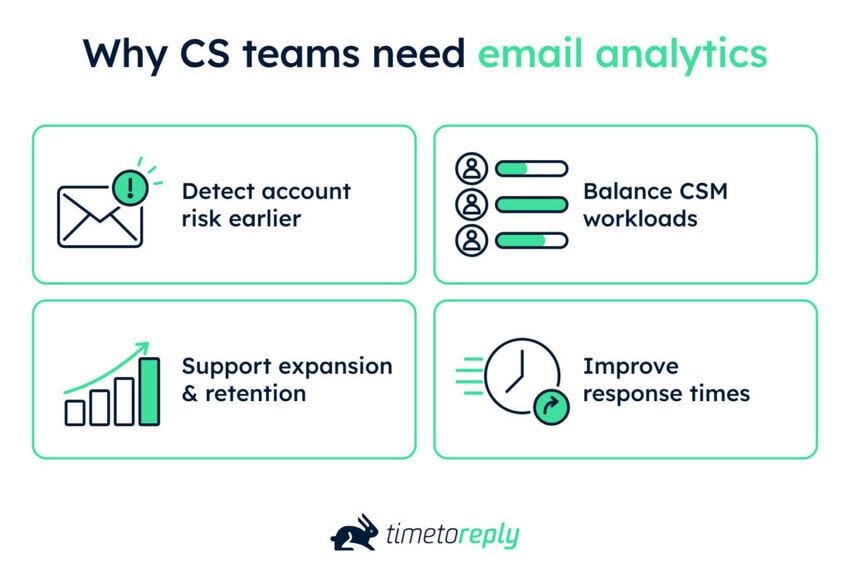
CSMs can investigate the root cause. They can then address the issues by providing more support or training before it leads to churn.
Email analytics helps you see which accounts have unanswered messages or fewer recent check-ins. Managers then use that information to shift CSM time toward accounts that need more attention.
For example, a customer can ask more questions about higher-tier features, additional seats, or usage limits. This can help you explore an expansion opportunity and increase revenue.
Tracking reply times shows which accounts or issues receive slower responses. Managers can use this data to set response targets and adjust workloads. This helps CSMs respond faster and improve satisfaction.
You need email analytics to detect at-risk accounts and balance CSM workloads. Email analytics also helps identify expansion opportunities and improve response times.
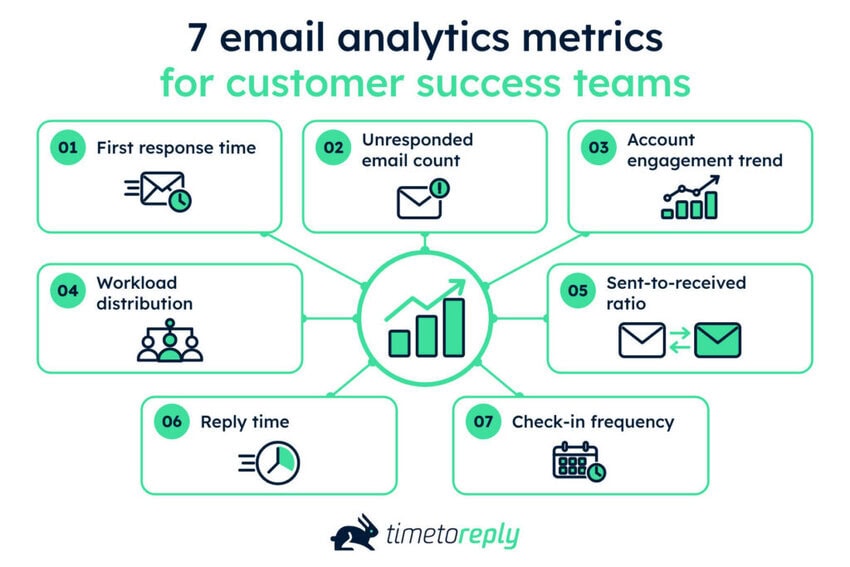
Customer success teams should track first response times, unresponded email counts, and customer engagement. Teams should also measure workload distribution, send-to-received ratio, reply time, and check-in frequency.
Here’s a quick table of the seven metrics. It explains what each metric tells you, how to watch it, and what to act on:
| Metric | What it tells you | How to watch it | Act on |
| First response time | Whether customers are getting timely first responses | Per account, per tier | Identify SLA (Service Level Agreement) breaches, coach CSMs, and rebalance workloads |
| Unresponded email count | Which customers sent emails and are still waiting for a response | Real time | Clear the backlog by routing emails to CSMs. Set up automated SLA warnings, for example, at a two-hour mark. |
| Account engagement trend | Whether customer email engagement is changing | Around 30-day vs 90-day baseline | Proactively reach out to customers with low engagement and offer support or discounts |
| Workload distribution | How workload is spread across CSMs | Weekly | Reallocate accounts from CSMs that are overloaded to under-capacity peers |
| Sent-to-received ratio | How many emails sent by the CSM compared to how many were received by the customer | Per CSM, per customer tier | Review accounts with one-sided communication and follow up with the customer |
| Reply time | How fast CSMs reply to ongoing customer emails after the first contact | Track by CSM, account, and team. In shared inboxes, attribute each reply to the CSM who sent it. | Investigate delays and rebalance workloads |
| Check-in frequency | How often CSMs proactively contact each account | Track CSM-initiated emails by account and account tier | Identify accounts with long gaps between check-ins and schedule follow-ups |
Here are the seven metrics at a glance:
Check out our guide to customer success metrics. It outlines the top metrics to measure to help spot early friction and prevent churn.
First response time is how long a customer waits for a human answer to their first message in a thread.
One common mistake is tracking the team average. A CSM can average three hours while one enterprise account waits twelve hours. The team average can hide the fact that one customer waited twelve hours.
Unresponded email count is the total number of customer emails in a CSM’s inbox that have not been replied to. You can see the size of your pending workload in real time. A high unresponded email count may signal that a CSM is overloaded.
Some emails may involve onboarding issues, product adoption concerns, or renewal questions. If these emails go unanswered, customers may get frustrated, which can lead to churn. You can use churn analysis to identify patterns that may signal an account is at risk.
Use the unresponded email count to identify overloaded CSMs and route pending emails.
This metric measures the changes in customer email activity over time. For example, a customer usually sends 10 emails a month but drops to four. This can be an early indicator of churn risk and account health.
Compare the account’s average monthly email activity over the past 30 days with its 90-day baseline. Say a customer usually sends 20 emails per month but sent only 10 this month. This means their engagement has dropped by 50%.
A drop doesn’t automatically mean the account is at risk. It gives the CSM a reason to check what changed. The CSM can review recent conversations, product usage, or customer feedback before reaching out.
CSMs can then offer more support, discounts, or personalized training to improve the experience. This matters because 34% of customers reduce spending after a bad experience. 13% stop spending entirely, according to Qualtrics:
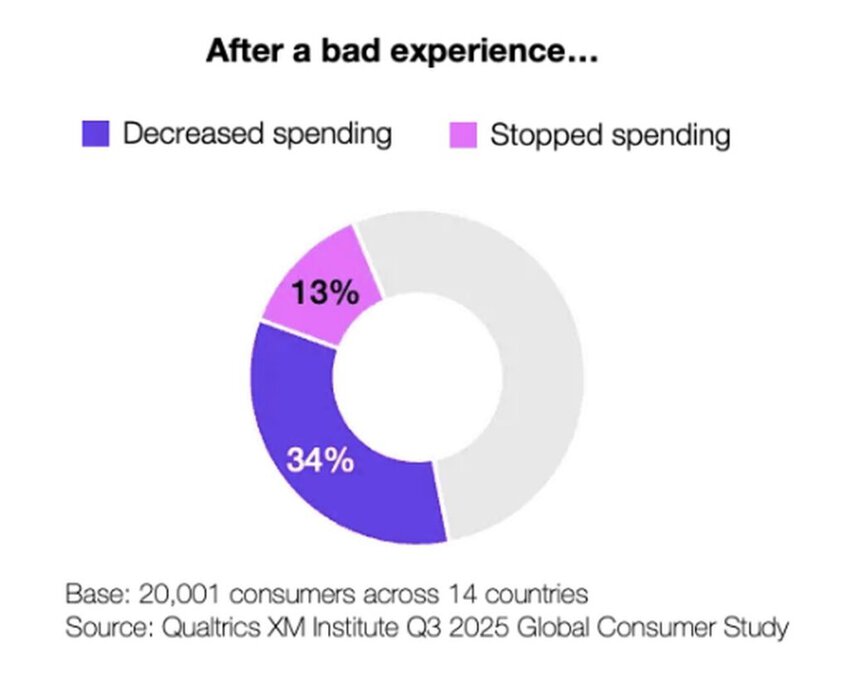
Image via Qualtrics
Also Read:
Workload distribution measures how evenly accounts, responsibilities, and tasks are spread across CSMs. One of the purposes of tracking this is to help prevent CSM burnout.
It also helps ensure every customer receives appropriate attention. This way, you can secure expansions and improve retention.
You can analyze workload distribution using a combination of quantitative and qualitative metrics. Here they are at a glance:
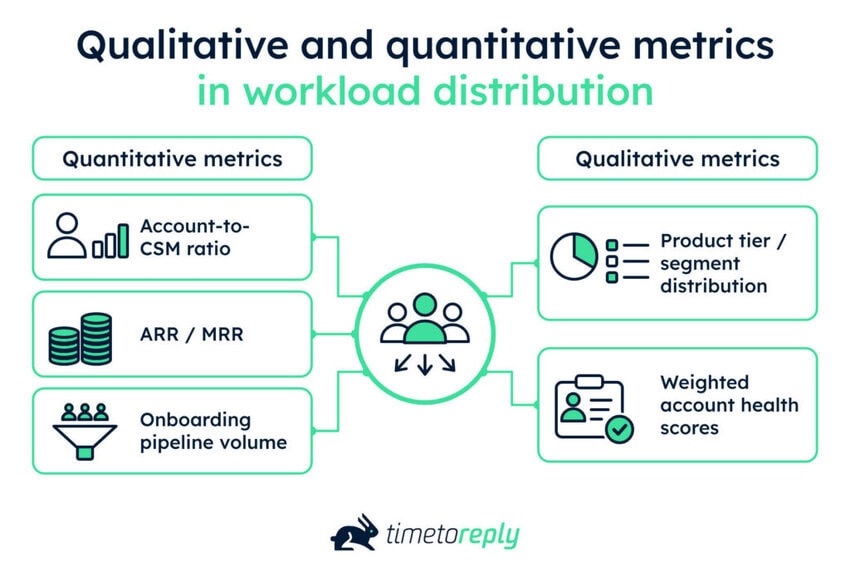
Quantitative metrics
Qualitative metrics
This customer success metric compares the number of emails a CSM sends to the number a customer receives.
For example, a 1:1 ratio means both sides are sending a similar number of emails. A 5:1 ratio can mean the CSM sends five emails for every one the customer receives. This can signal low customer response or repeated follow-ups.
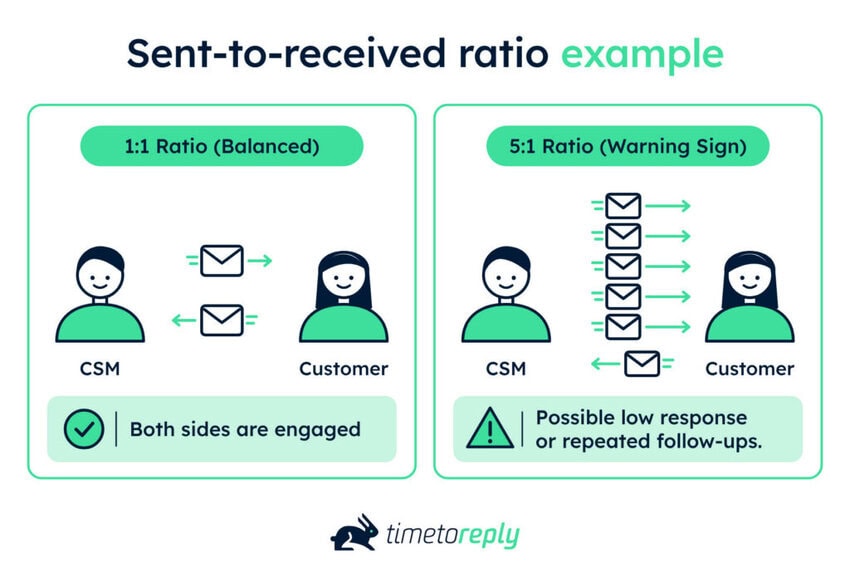
Track this metric by CSM to see whether one CSM has a very different communication pattern from peers. You should also track it by customer tier. This is because enterprise and SMB accounts can have different communication needs.
This metric helps you measure how fast a CSM replies to ongoing customer emails after the initial contact. You should track reply time by CSM, account, and team.
Shared inboxes can make reply time harder to track because several CSMs may handle the same customer email. To measure it accurately, attribute each reply to the CSM who sent it, not the shared inbox where the customer’s email arrived.
For example, a customer emails success@company.com. One CSM opens the message and replies from name@company.com. The reply time should then be attributed to that CSM.
You can use tools like timetoreply to help with this attribution. When CSMs send replies on behalf of a shared mailbox, the reply time is attributed to the individual who replies. If they reply as the shared mailbox, the reply time is attributed to the shared mailbox itself.
There are three email patterns that can make shared-inbox tracking harder. This is if your email analytics tool can’t distinguish them from customer replies:
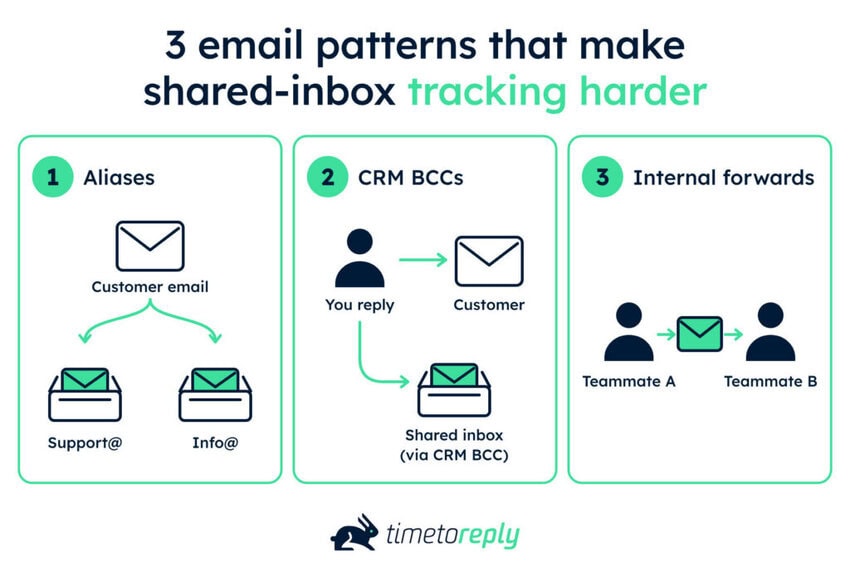
For pooled teams, where several CSMs share responsibility for the same accounts, track reply time by account or team as well as by individual CSM. For digital-touch teams, separate automated emails from human replies when measuring response times.
Check-in frequency measures how often a CSM proactively contacts an account. It focuses on CSM-initiated emails. To track it, set an expected check-in cadence for each account or customer tier. Then compare that cadence with the CSM’s actual email activity.
For example, if an account should receive one monthly check-in, track whether the CSM made that contact each month. Tailor check-in cadences to customer needs.
Say an account has missed its planned cadence. The CSM should review health scores, product usage, lifecycle stage, or recent communication. They can then decide whether a check-in is actually needed and what the message should address.
This ensures that accounts receive the level of proactive contact planned for their customer tier and needs. It can also help managers identify gaps in CSM outreach before accounts are overlooked.
Track first response time, unresponded email counts, and account email engagement trend. They also include workload distribution, sent-to-received ratio, reply time, and check-in frequency.
Also Read:
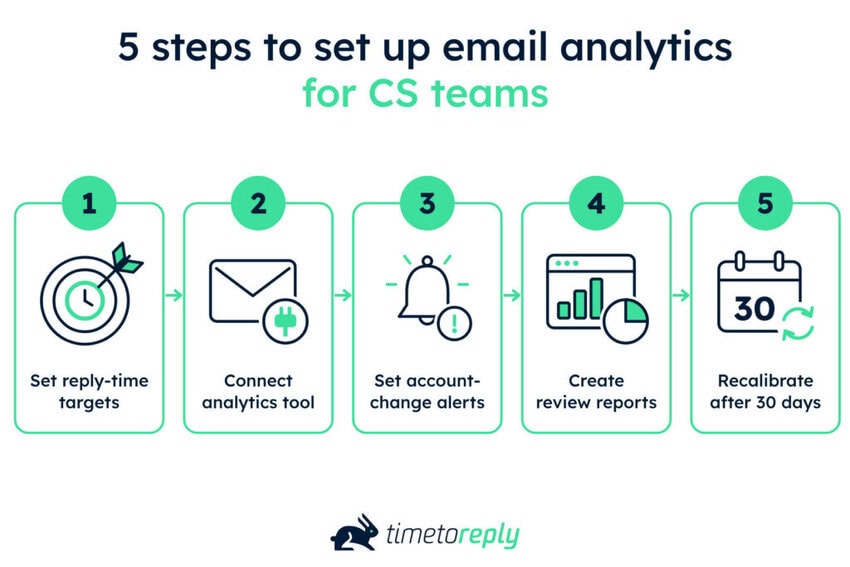
Setting up email analytics for customer success involves five steps. First, set reply-time targets by account tier so you know what timely responses look like.
Next, connect your email analytics tool to the mailboxes your team uses. Then, set alerts for important account changes. Create reports for regular reviews. Recalibrate your setup after 30 days based on what the data shows.
Here are the five main steps at a glance:
Decide how fast CSMs should reply to different types of customers, such as enterprise or SMB accounts. The exact targets depend on your team’s capacity, customer expectations, and any customer service SLA commitments you already have.
A contractual SLA is a formal agreement between your company and the customer. It sets service commitments, such as response times. Email SLA monitoring shows whether customer emails are answered within the agreed time.
Your internal target can match the SLA. But it can also be different and used only for internal team management.
You should also define when response-time tracking starts and stops, based on your team’s working hours. For example, decide whether weekends and holidays count toward response times. Account for time zones too. The data should reflect when your team is actually expected to respond.
Choose an email analytics tool that works with the mailboxes your CSMs already use. For example, you can connect your Outlook mailboxes to tools like timetoreply. Then start tracking email activity. This can include email response times across individual and shared mailboxes.
You can connect Microsoft mailboxes to timetoreply in two ways. These include single add (one by one) or bulk link (multiple at once):
Single add
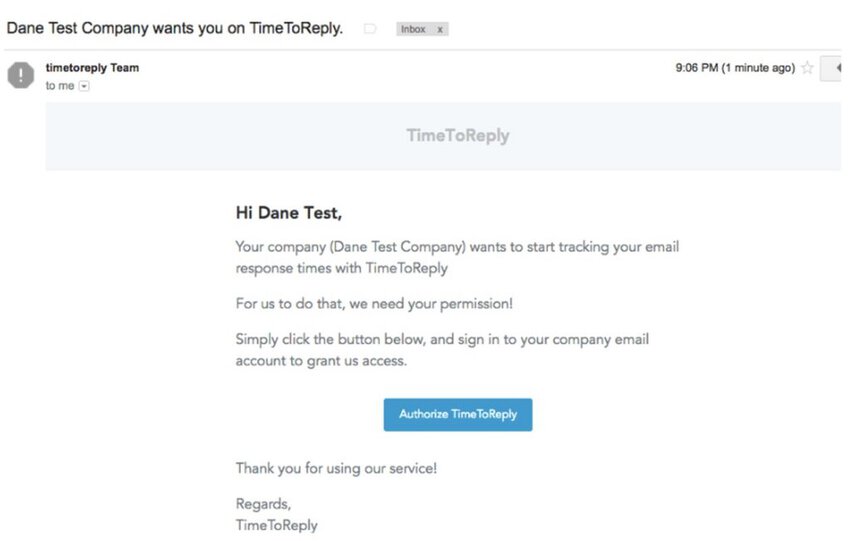
Image via timetoreply
Bulk link
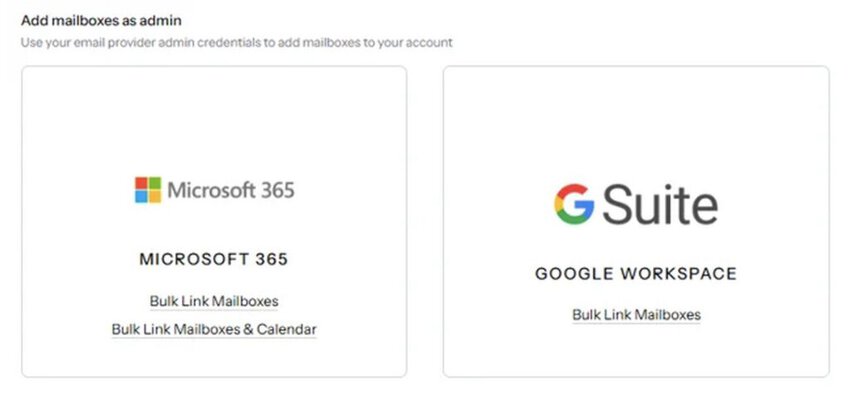
Image via timetoreply
Read our email analytics for Outlook and Microsoft 365 guide to see what you can measure.
Set real-time alerts for emails that need immediate attention. For example, an alert could fire when a customer email remains unanswered for two hours.
Choose the condition, set the response-time threshold, and select who receives the alert. Send it to the CSM when they need to act immediately, such as for unanswered emails. Or send alerts to CS managers when an issue needs oversight, such as repeated service level agreement breaches.
Create reports that show how your team is handling customer emails over time. For example, a weekly report could show average reply times, email volume, and SLA compliance across your CSMs.
Use an email analytics tool such as timetoreply to:
Review your data regularly to see whether your targets and alerts are useful. Look for repeated missed targets, alert patterns, and changes in reply times.
Our guide to improving email response times explains how to use response data to find areas for improvement.
You can also build a dashboard to track email metrics yourself instead of paying for software. However, you would need to pull email data through Gmail’s API or Microsoft Graph. Then store that data in a data warehouse for customer success reporting.
This takes ongoing development time, which makes software appealing. This is why most teams invest in email analytics software.
Start by setting reply-time targets by account tier, then connect your email analytics tool. Set alerts for missed response targets or unanswered emails. Finally, create and review reports for reply times, email volume, and SLA results.
Also Read:
Introduce email analytics to help customer success teams measure response patterns. Not to read or judge individual messages. Explain to CSMs what data an email analytics tool collects, who can access it, and how you’ll use the results before tracking begins. Keep the focus on how email analytics can help improve team performance and customer response times.
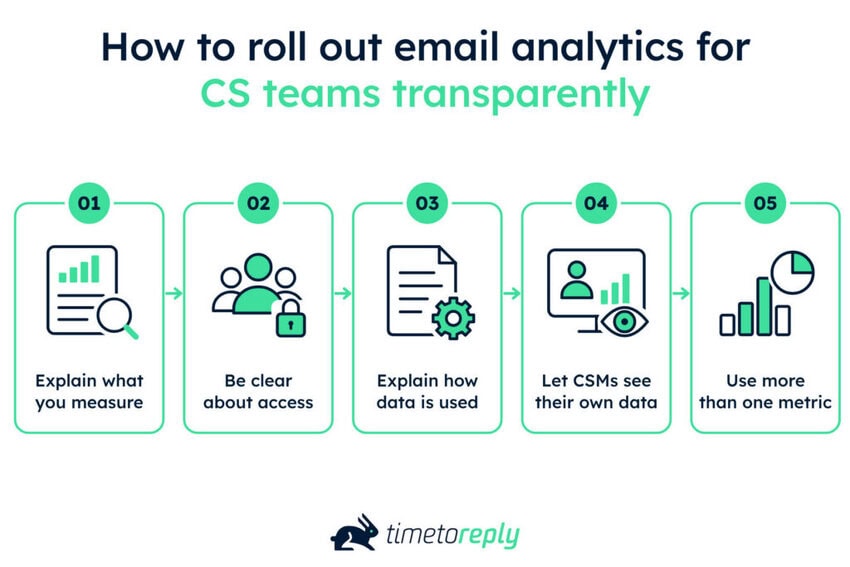
CSMs should know why their email activity is measured and how managers will use the results. Give CSMs access to their performance metrics like reply times or SLA compliance. This helps them spot areas of improvement.
Good email performance means customers receive timely replies from CSMs. The response time may differ based on the account type, urgency, or SLAs. For example, an enterprise account during the renewal stage may need a faster response than a low-touch SMB account. The same applies when a customer sends an urgent request instead of a routine question.
There’s no single response-time benchmark that works for every customer success team. Your targets should reflect those differences.
We’ve broken down targets for first response times for both enterprise and standard accounts below. We’ve also included targets for SLA compliance, workload distribution, and engagement drift.
The table below breaks down starting targets, not industry benchmarks. You can use them to set response-time expectations for different account tiers. Then adjust the targets based on your own data:
| Measure | Estimated starting target | Notes |
| First response, enterprise or escalated | Within around one business hour | Set faster response targets depending on customer needs or priority issues |
| First response, standard accounts | Within around four business hours | Aims to keep responses within the same business day |
| SLA compliance rate | 90%+ of customer emails | Shows how often the team meets its response targets |
| Workload spread | No CSM has more than twice the workload of peers | Compare CSMs managing similar account tiers |
| Engagement drift | Compare recent email activity with the account’s usual level | Investigate a drop in email activity, like fewer responses |
Your own data can show whether these targets are realistic. Take Ontellus as an example. Its responsiveness increased from 62% to 86%, measured against an eight-hour business-day target. The company was working toward a 95% target.
Ontellus also reported a roughly 20% reduction in transactional email volume. This decline occurred even as its customer base continued to grow.
The lesson is simple. Set a clear response window, measure your starting point, and track how performance changes over time. Your own customer email data can then help you refine the targets for your team.
Customers should receive timely replies to their questions, issues, and requests. Response times should meet the targets set for each account tier and customer need. Continuously track response times, SLA compliance, workload spread, and engagement drift. Refine your targets and improve customer experiences.
The timetoreply tool helps you measure team email performance analytics across individual and shared mailboxes. It connects to Outlook, Microsoft 365, and Google Workspace. You can then track metrics such as reply times, email volume, and SLA performance.
You can also view these metrics by team, CSM, customer, account, or tier. This helps managers spot delayed responses and compare performance against targets:
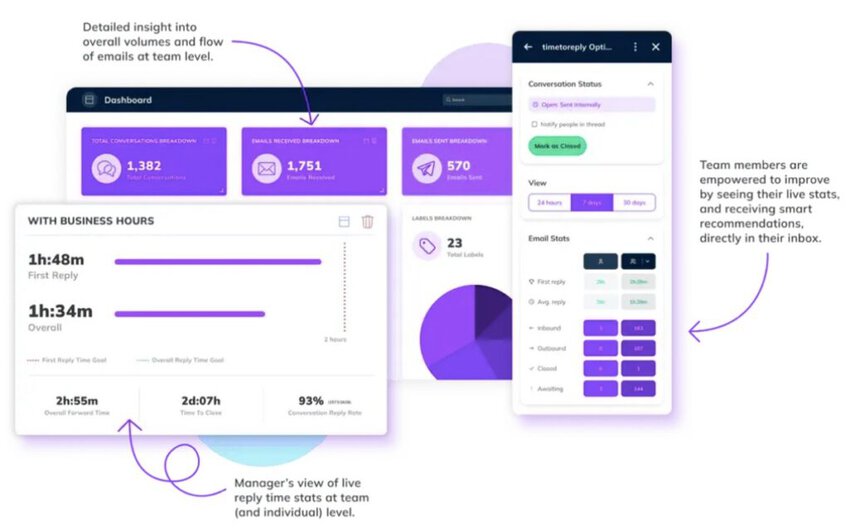
Image via timetoreply
Security matters when connecting customer email accounts. The timetoreply tool is Google Security and ISO 27001 certified. Data is encrypted in transit and at rest. Standard analytics use email metadata. AI features are optional and require explicit opt-in. For example, you can enable the Smart Emails Insights feature for email sentiment analysis.
Read our guide to the best email analytics platforms and compare their features and use cases.
They can track reply times, email volume, SLA performance, and workload across CSMs and shared mailboxes. They can also compare results by team, customer, account, or tier to spot response delays and workload gaps.
Also Read:
Run a weekly customer success email review by checking metrics. These can include SLA compliance, first response time, and customer engagement. Flag accounts that need attention and assign an owner to each follow-up.
Here’s what you can start with:
Then assign a follow-up owner to each account or issue that needs action. This gives every finding a clear next step instead of leaving it in the report.
Look at four weeks of data before acting on a single poor result. A temporary spike in email volume or staff absence can affect one week’s numbers.
Start by reviewing SLA compliance, first response time, and changes in customer engagement. Compare the results with recent weeks, flag accounts that need attention, and assign an owner to each follow-up.
Also Read:
1. What’s the importance of email analytics for customer success teams?
Email analytics help customer success teams track response times, email volume, customer engagement, and CSM workload distribution. Teams can set clear response targets, manage workloads, and spot at-risk accounts.
2. Which email metrics should a customer success team track first?
Start with metrics that show when customer communication slows or changes. Track first response time, unresponded emails, and customer email engagement to spot delays or drops in activity. Workload distribution shows which CSMs may be overloaded. Sent-to-received ratio can also reveal one-sided communication.
3. Can email data really predict customer churn?
Email data can’t predict churn on its own. It can reveal changes in customer behavior, such as lower email activity or slower replies, that may signal rising churn risk. You can combine these signals with product usage or customer feedback to spot at-risk accounts before following up.
4. What’s a good email response time for a CSM?
There’s no standard response time that fits every customer success team. For example, an enterprise customer with an urgent issue may need a one-hour target. A routine SMB request can allow more time.
Start with your SLAs and customer expectations, then refine targets using your response-time data.
5. How can I perform email response time tracking in Outlook?
You can pull message data through Microsoft Graph and calculate the time between incoming emails and replies. However, this process can be technical and too time-consuming. Instead, you can use email analytics software such as timetoreply. It connects to Microsoft 365 and tracks reply times, missed emails, and SLA performance.
6. How do you measure response time in a shared or team mailbox?
Track the time between a customer’s email and a CSM’s reply. In a shared mailbox, attribute the reply to the CSM who sent it. For pooled teams, measure the mailbox as a whole. Exclude automated messages and internal forwards.
7. How do you add email data to a customer health score?
Choose signals such as response time, unanswered emails, and changes in account email activity. Give each signal a positive or negative score based on your rules. Then combine email signals with product usage, support issues, and customer feedback. Review the results and adjust the scoring over time.
8. Is tracking your team’s email response times legal?
Yes, it’s generally legal on company-owned systems and devices. However, you should have a legitimate business purpose for tracking response times. A good practice is to inform employees what you track, why you track it, and who can access the data.
9. How is CS email analytics different from email marketing analytics?
Using email analytics for customer success (CS) teams helps you understand account-level communication and responsiveness. Email marketing analytics focuses on campaign performance across larger audiences. It tracks metrics such as opens, clicks, bounces, and unsubscribes.
10. How often should a CS team review email performance?
The right cadence depends on your team size, email volume, and response-time targets. For example, you can review email performance weekly and use alerts for emails that miss a response target.
Also Read:
For customer success teams, email analytics helps track one-to-one communication between CSMs and customers. You can track reply times, email volume, and changes in customer communication. These insights can reveal response delays, workload issues, and account-level changes that need attention.
You should also track CSM workload to see which CSMs are handling more customer emails and may need workload adjustments. Track the sent-to-received ratio to see whether communication is balanced. Or if CSMs are sending repeated follow-ups without much customer response.
To set up email analytics, define response targets per account. Connect your email analytics software to your mailboxes. Use real-time alerts to get notified when customers send emails or don’t receive a timely response. Regular reports help managers review response times, SLA compliance, and workload.
Email analytics tools such as timetoreply can automate this tracking and help teams act on the data. Book a demo today.
Get live inbox alerts and reply quickly to customer emails with timetoreply

CEO @ timetoreply
Howard Moodycliffe is CEO of timetoreply, an email analytics & relationship intelligence platform for B2B customer-facing teams. He writes about email performance, SLA management, and how organisations can use communication data to protect customer relationships and revenue.


Trusted by high-performing inbound sales teams and customer-facing teams globally.
Close more deals and delight more customers with the faster, smarter, deeper email analytics and performance optimization software that works straight from your team’s inbox.