
Inbox zero in Gmail is a simple way to manage your email so nothing important gets missed. Instead of leaving messages in your inbox, you read them, reply, file them, or delete them. You can set up inbox zero in Gmail with labels, filters, and the right inbox layout. Customer-facing teams use the same approach to reply faster and stay organized.
Inbox zero in Gmail is a method for keeping your inbox clear by dealing with every email that arrives. The goal is to make sure no message is left waiting for your attention.
Many people use their inbox as a to-do list. Over time, unread messages pile up, important emails get buried, and it becomes harder to know what needs your attention. A full inbox also creates stress because every email feels like another unfinished task.
Inbox zero in Gmail solves this problem with a simple system. Every email is handled once. You reply to it, file it, delete it, or save it for later with a clear action. Gmail tools like labels, filters, and Multiple Inboxes make this process much easier.
This guide covers what inbox zero really means and how to set it up in Gmail. It also shows how busy customer-facing teams keep the habit at scale.
Inbox zero is an email management approach where your inbox holds no unprocessed messages. Each one has been handled, delegated, deferred, or deleted. The “zero” refers to the time your mail spends demanding attention, not the number of emails you own. You can archive thousands of messages and still hit inbox zero in Gmail. What matters is that none of them sit in your inbox awaiting a decision.
The term comes from productivity expert Merlin Mann, who popularized it in the mid-2000s. His point was simple. An inbox is a place for processing email, not for storing it. When messages stay there indefinitely, each visit forces you to re-read and re-decide, which can drain your focus.
So inbox zero is a habit, not a one-time cleanup. You process new mail in short, scheduled passes. Then you return the inbox to empty.
A useful rule is to touch each message once and decide on the spot. Everything you keep moves to a label or the archive. Gmail’s search function helps find it again in seconds, so nothing is actually lost.
For example, if you receive 12 emails before lunch, you do not leave them sitting in your inbox. You archive four, reply to three, snooze two until the afternoon, and label the remaining three for follow-up. Your inbox is clear, and every email has been dealt with. That is how inbox zero in Gmail works.
Inbox zero in Gmail is important because it helps you stay organized. A cluttered inbox can distract you and slow your work. It can also make replying to emails feel stressful. Keeping your Gmail inbox clear makes it easier to stay in control and give faster responses.
Inbox zero in Gmail helps you keep your inbox organized, so important emails are easier to find and manage.
Too many emails create a focus challenge. Microsoft’s 2025 Work Trend Index noted that the average worker receives 117 emails a day, most skimmed in under a minute. The same study found people are interrupted every two minutes during core hours.
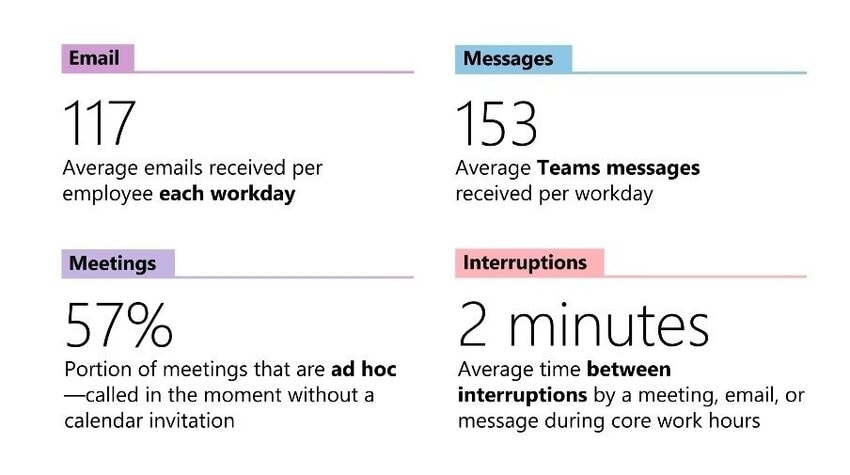
Image via Microsoft
The problem will keep growing. The Radicati Group projects more than 4.9 billion email users worldwide by 2028, which will also increase email volume.
Every new email can break your focus. Even a quick glance pulls your attention away from your work. Switching back into focus takes far longer than the glance itself. A crowded inbox also hides important emails. Key messages can sit under newsletters and notifications. Some never get a reply because they are missed.
With inbox zero in Gmail, it is easier to respond quickly since your inbox only shows the emails that need action. When mail is sorted the moment it lands, the emails that need a reply are easy to spot. That speed shows up where it counts most.
As a matter of fact, timetoreply’s data shows 88% of customers want a reply within an hour of emailing a company. Another 86% expect a better first contact resolution rate, with their question resolved on the first reply. Slow replies cost trust, and trust is hard to win back.
Also, Zendesk’s 2025 CX Trends report found 63% of consumers will switch to a competitor after one bad experience. Faster email response times are a direct way to protect that trust.
A full inbox creates mental clutter. Every unread email looks like another task waiting to be done. When you sort your inbox, you know what needs your attention and what is already finished.
Inbox zero in Gmail gives better focus that improves your work. Microsoft’s 2025 research found 80% of the global workforce lack enough uninterrupted time in their day to do their work. Workers spend a large share of the week on email and meetings.
Checking your inbox all day creates even more interruptions. Batch your email instead. You spend less time switching between tasks and more time getting important work done. This simple habit improves your email productivity and helps you stay focused.
Also Read:
You can reach inbox zero in Gmail by organizing your inbox and following the same simple routine every day. Set up labels, Multiple Inboxes, filters, keyboard shortcuts, and Gmail’s built-in productivity tools. Then process your email with the 4D method during scheduled email sessions.
Here’s a breakdown of the steps to follow to reach inbox zero in Gmail.
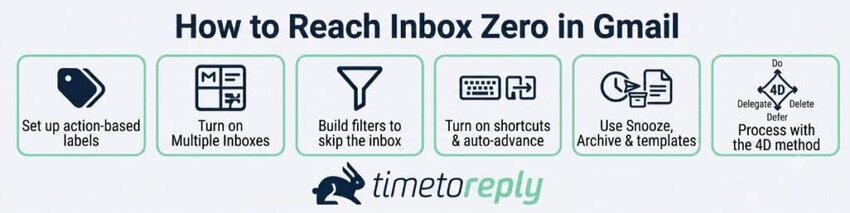
Image via timetoreply
Labels are how Gmail sorts mail without folders. To reach inbox zero in Gmail, maintain a small, action-based set of labels. Each label should tell you what to do next, not just what a message is about.
Google’s Gmail tips guide suggests three to begin with — Action, Follow up, and Later. Create them from the left sidebar, under “More” then “Create new label.”
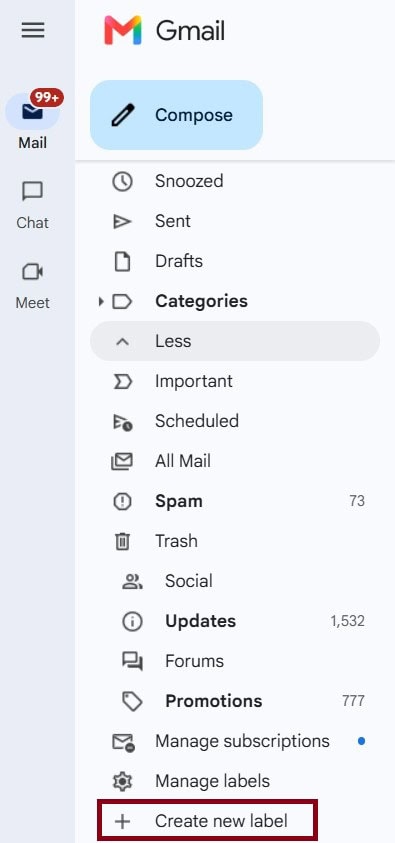
Image via Gmail
Keep the list short. Too many labels become their own kind of clutter. Color-code the three so you can scan them at a glance. Stars and importance markers can flag urgent threads on top of your labels.
The Multiple Inboxes feature makes inbox zero in Gmail easy to manage. It adds more panels next to your main inbox, so you can sort emails into groups.
To use it, open Settings, then the Inbox tab. Set “Inbox type” to Multiple Inboxes.
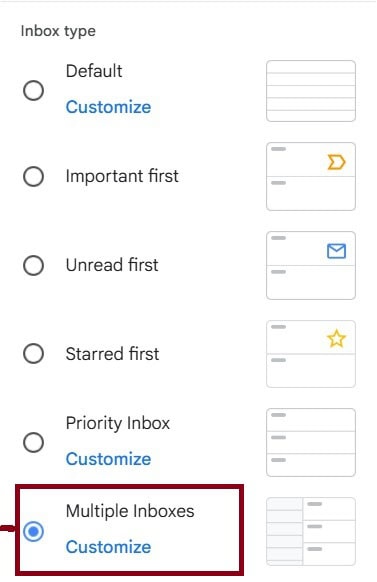
Image via Gmail
In the sections that appear, point each panel at a label. Use a search like label:action, label:follow-up, and label:later. Google’s support team recommends this exact setup for inbox zero in Gmail.
Now your decisions live in their own panels. Your main inbox stays clear, with your open loops visible right beside it.
Filters do the sorting before you ever see a message. They are how you stop low-priority mail from reaching your inbox at all. Open the search box and click the filter icon.
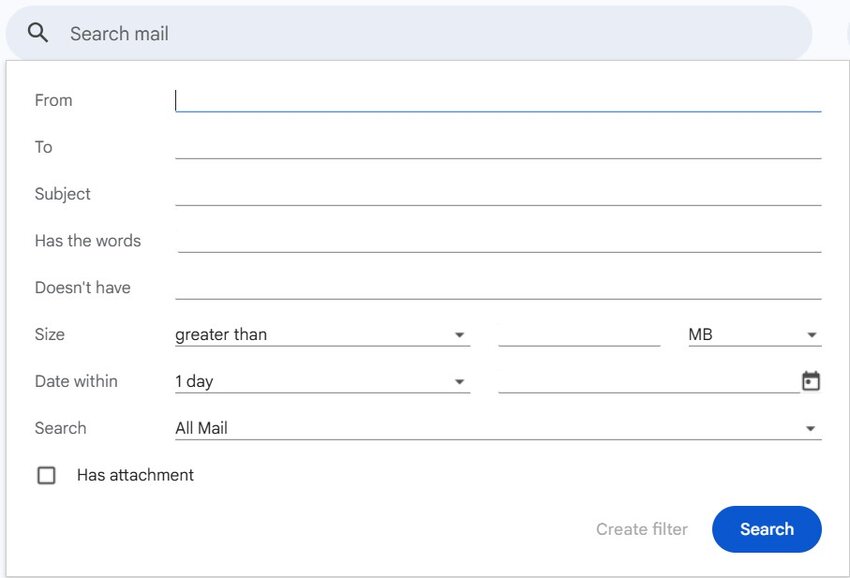
Image via Gmail
Define a rule, for example all mail from one newsletter sender. Then check “Skip the Inbox (Archive it)” and “Apply the label.”
Now newsletters, receipts, and alerts route straight to a label, not your inbox. Gmail’s category tabs help too. Turn on Promotions and Social tabs to pull bulk mail out of Primary automatically.
Search operators make cleanup faster. Try ‘older than:1y’ to find stale mail, or ‘is:unread’ to gauge your backlog. Use ‘has:attachment’ to surface the heavy threads worth keeping.
Review your filters every few weeks, so nothing useful gets buried. Strong filters are a staple of email management best practices.
Inbox zero in Gmail is easier to maintain when you can move through emails more quickly. Gmail’s keyboard shortcuts let you archive, label, and move through mail in seconds. Turn them on in Settings, under “Keyboard shortcuts on.”
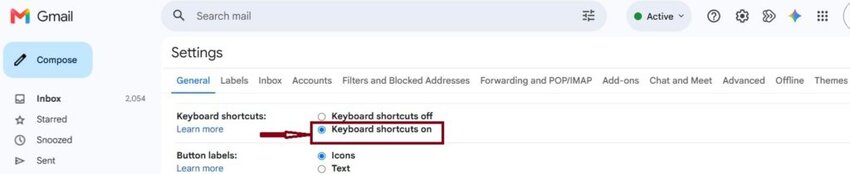
Image via Gmail
Then enable Auto-advance in Settings, under the Advanced tab. Now Gmail opens the next message after you clear one.
Learn a handful first — e to archive, # to delete, r to reply, and l to label. These few cover most of a triage pass. The rest you can pick up over time, once the basics feel natural.
Snooze, Send and Archive, and templates can help you manage emails faster, clear your inbox, and support inbox zero in Gmail.
If you’re not ready to handle some emails yet, snooze it, and Gmail will remove it until the time you pick. Snooze sparingly, though, or it becomes a way to avoid decisions.
Also, turn on “Send and Archive” in Settings, so replying clears the thread in one click. For questions you answer often, save a template. You will find templates under Settings, then Advanced.
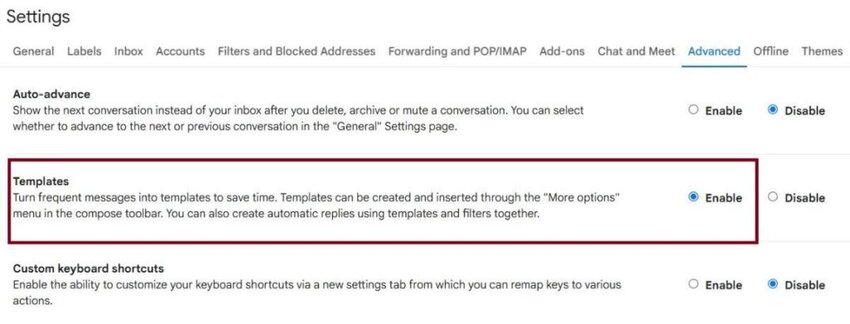
Image via Gmail
A good template saves time on repeat replies and helps keep responses consistent across a team’s customer service emails.
With the setup done, your daily routine is a triage pass using the 4D method — delete, do, delegate, defer. You touch each message once and make a clear decision.
Delete or archive anything you don’t need right away. If it takes under two minutes, just do it then and there so small tasks don’t pile up.
Then, delegate it if someone else owns it. Defer it with a label or a snooze if it needs time later.
Run this pass two or three times a day in focused blocks. Avoid reacting to mail all day long, which is what breaks the habit. Each pass ends with an inbox zero in Gmail and a clear head.
Also Read:
Both layouts help you reach inbox zero in Gmail, but they work differently. Multiple Inboxes gives you full control with saved searches. Priority Inbox lets Gmail sort importance for you. The right choice depends on how much you want to manage by hand.
| Aspect | Multiple Inboxes | Priority Inbox |
| How it works | Custom panels driven by saved searches and labels | Gmail predicts importance and splits mail into sections |
| Best for | People who want a deliberate, label-based system | People who want automatic sorting with little setup |
| Setup effort | Moderate: You define labels and searches | Low: Turn it on and refine over time |
| Inbox-zero fit | Strong: Panels map to your triage decisions | Good: Surfaces important mail, but you still sort the rest |
| Watch-outs | Needs upkeep as your labels change | Less control; the prediction can miss your priorities |
Multiple Inboxes works well for people who like a structured system and want more control over how they sort email. Priority Inbox suits someone who wants Gmail to do the first cut.
Many people start with Priority Inbox and move to Multiple Inboxes as their volume grows to achieve inbox zero in Gmail. You can switch between them at any time without losing mail. There is no wrong answer here, only the layout that fits how you think.
Choose Multiple Inboxes when you want a triage system that mirrors your own workflow and you don’t mind a little setup. Then, choose Priority Inbox when you want Gmail to surface what matters automatically and prefer a lighter touch.
You maintain inbox zero in Gmail on mobile by using the app as a quick sorting tool, not a place to work through long email threads. The goal is to clear and organize emails fast, then move on with your day.
Start by setting up swipe actions inside the Gmail app. Go to Settings and open “Swipe actions.”
Then choose actions like archive or snooze so you can handle emails with a single swipe. This makes it easy to clear messages without opening each one.
Next, reduce interruptions from notifications. Set alerts to “High priority only,” or turn them off during focus time. You can also enable Multiple Inboxes so your labels appear on mobile and you can sort emails the same way you do on desktop.
When you check email on your phone, keep it simple. Archive what you have finished and snooze what needs later attention. Leave anything deeper for your next proper session.
You’re not trying to do full work on mobile, but to stay in control and manage email for remote work wherever you are.
Also Read:
You can maintain inbox zero in Gmail by following a few simple habits every day. These are basic email etiquettes that can stop your inbox from filling up again. They also help you avoid delayed responses and spend less time managing email.
Process your inbox two or three times a day instead of checking it every few minutes. Many people prefer a morning, midday, and end-of-day email session. Keep each session short and work through every email before returning to other tasks.
Set aside about 10 minutes each week for inbox maintenance. Review your filters to make sure they still sort email correctly. Archive messages you no longer need in your inbox.
Also, remove labels that no longer serve a purpose and unsubscribe from newsletters and promotional emails you never read. These best practices for email management will stop clutter from building over time and help you maintain inbox zero in Gmail with less effort.
If your inbox grows into the hundreds or thousands, do not feel you have to read every message. Trying to catch up one email at a time often wastes more time than it saves.
Instead, archive everything older than two weeks and start working from your recent emails. Gmail keeps archived messages searchable, so you can still find them later if needed. Important conversations are not lost. They are simply removed from your main inbox.
This approach gives you a clean starting point in line with your email response times policy, and makes it easy to manage your normal routine and maintain inbox zero in Gmail.
Personal inbox habits work well for one person. Shared inboxes need another layer of organization. Every customer email should have one clear owner. If nobody takes responsibility for a message, it can sit unanswered while everyone assumes someone else will reply.
Strong shared mailbox best practices and clear ownership rules make teamwork easier. Managers can see who is handling each conversation. Team members know which emails need their attention. This reduces missed replies and helps teams reach inbox zero in Gmail.
A clean inbox tells you that messages have been processed. It does not tell you how long customers waited for a reply. That difference matters for support and customer service teams. Fast replies build trust, while slow replies can damage the customer experience.
Set reply time goals for your team and track them regularly. Measure email response time and full resolution time because they show different parts of the customer journey. Track them alongside other customer service metrics to have a full picture of your performance. Review the results to find delays and improve your workflow.
Instead of relying on a clean inbox alone, timetoreply helps managers measure email performance and spot problems before they affect customers.
The platform works inside Microsoft Outlook and Gmail, so teams can continue using the email tools they already know. It tracks key customer service metrics such as first response time, reply time, and SLA compliance.
It also uses Smart Data to identify signals like customer sentiment, intent, and urgency from email metadata. This helps managers prioritize conversations that need immediate attention.
To protect customer privacy, the platform analyzes email headers and metadata instead of message content. It is also certified to SOC 2 Type II and ISO 27001 security standards.
Many organizations have used the platform to improve their email performance:
For customer-facing teams, inbox zero in Gmail is only part of the picture. A clean inbox shows that emails have been processed. A tool like timetoreply shows how well your team responds to customers.
Also Read:
You do not need extra software to reach inbox zero in Gmail. The native tools do most of the work — labels, Multiple Inboxes, filters, and shortcuts. That said, a few categories of tools can help once your volume grows.
Before adding anything, set up the built-in features in Gmail. They cost nothing and cover the core workflow. Gmail’s own AI features can speed up replies and sorting too. Examples include the help-me-write tool and smart categorization. Pair the tools with solid email management habits, since only software cannot fix a poor routine.
Bulk-cleanup tools help you archive and unsubscribe at scale. For example, Mailstrom and Clean Email both sort large inboxes by sender or type. You can clear thousands of messages in a single sitting, which makes a reset much faster.
Some tools rebuild the inbox zero workflow with automation. Inbox Zero, an open-source AI assistant, drafts replies and bulk-unsubscribes for you. The cloudHQ Gmail Inbox Zero extension simplifies the Gmail interface to keep you focused. Test one only if the native setup is not enough on its own.
For teams, the gap is measurement, not cleanup. The timetoreply tool tracks reply times and SLA performance across Gmail mailboxes. Managers can see where customers wait and coach toward faster replies. This is the layer a personal app cannot give a team, and it sits at the core of email analytics.
1. What is inbox zero?
Inbox zero is a way to manage your email. It means there are no emails left in your inbox that still need your attention. Every message has been read and dealt with. You either reply, archive, delete, delegate, or snooze it for later.
2. Does inbox zero in Gmail mean having no emails at all?
No. The word “zero” does not mean you have no emails. It means you have no unfinished work sitting in your inbox. You can have thousands of archived emails and still reach inbox zero in Gmail.
3. Who created inbox zero?
The concept of inbox zero was introduced by productivity expert Merlin Mann in the mid-2000s. His idea was simple. Your inbox should help you process email, not store it. The goal was to reduce the amount of attention your inbox demands.
4. How do I get to inbox zero in Gmail fast?
Start with a clean slate. Archive all emails that are more than two weeks old in one step. Your emails are not deleted, and you can still find them using Gmail search. Then create action-based labels, turn on Multiple Inboxes, and set up a few filters. Finish by checking your inbox at set times each day and processing every new email.
5. How often should I check email to stay at inbox zero?
You do not need to check your email every few minutes to maintain inbox zero in Gmail. For most people, checking email two or three times a day is enough. A morning, midday, and end-of-day session works well. This gives you time to reply without letting email interrupt everything else you are doing.
6. What is the 4D method?
The 4D method is a decision rule for managing email — delete, do, delegate, or defer. Delete or archive emails you no longer need. Do reply right away if the task takes less than two minutes. Delegate it to someone else if they should handle it. If it can wait, defer it by adding a label or snoozing it until later.
7. Should I use Multiple Inboxes or Priority Inbox?
That depends on how you like to work. Choose Multiple Inboxes if you want to organize emails with labels and saved searches. Go for Priority Inbox if you want Gmail to sort important emails for you. Multiple Inboxes gives you more control over your workflow. Priority Inbox is easier to set up, but you have less control over how emails are sorted.
8. How do Gmail filters and labels help with inbox zero?
Labels help you organize emails by what you need to do next. You can create labels such as Action, Follow up, or Later. With defined filters, Gmail applies those labels automatically as emails arrive. Together, filters and labels reduce inbox clutter and help maintain inbox zero in Gmail.
9. Is inbox zero free, or do I need a paid app?
You do not need to pay to use inbox zero. Gmail already includes the tools you need, including labels, Multiple Inboxes, filters, keyboard shortcuts, and Snooze. Many people never need anything else. If your inbox becomes much larger or you manage customer emails as a team, you can always add a paid tool later.
10. How do I maintain inbox zero without burning out?
Keep your passes short and scheduled, and end the last one of the day at zero. Once a week, spend ten minutes reviewing filters and labels. If you fall behind, archive everything older than two weeks and start fresh. The habit should feel light. If it feels like a second job, simplify your labels until it does.
11. Is inbox zero actually worth it, or is it just hype?
For many people, inbox zero is worth the effort. A clean inbox can reduce stress and help you reply faster. You do not need to keep your inbox empty every minute of the day. Just avoid leaving emails without a decision.
Also Read:
Inbox zero in Gmail is within reach for anyone willing to set up a few features and build a short habit. Create action-based labels and turn on Multiple Inboxes. Add filters to sort mail before you see it. Then process the rest with a quick daily triage pass. Keep it light, reset when you fall behind, and your inbox becomes a calm place you trust.
For customer-facing teams, the habit is only half the story. The other half is knowing your reply times are actually fast. That is something a clean inbox cannot show you on its own.
If you want to see and improve how quickly your team replies, book a demo with timetoreply and watch it on your own data.
Get live inbox alerts and reply quickly to customer emails with timetoreply

Head of Customer Success @ timetoreply
Barry Blassoples is the Head of Customer Success at timetoreply, where he helps customer-facing teams boost revenue and protect brand reputation by providing actionable insights to improve their business email response times. He has over 15 years of leadership experience across customer success, sales, and marketing roles in high-growth tech companies.



Trusted by high-performing inbound sales teams and customer-facing teams globally.
Close more deals and delight more customers with the faster, smarter, deeper email analytics and performance optimization software that works straight from your team’s inbox.